Greetings gents/ladies. I hope all is well.
I’ve hit a roadblock regarding Request for Quotation. In most businesses relating to supplying products, you’d have a adhoc/generic/One-off/Uncatalogued item and its item code.
In ERPNext v16.30, it’s not possible to create “generic“ item codes and just use the product as is by default. To enable this, you’re going to need to update form for the items list for the Request for Quotation entry.
Request for Quotation

- Go to Buying –> Request for Quotation (RFQ)
- Scroll down until you see the Items list where you can add items for your Request to Quotation
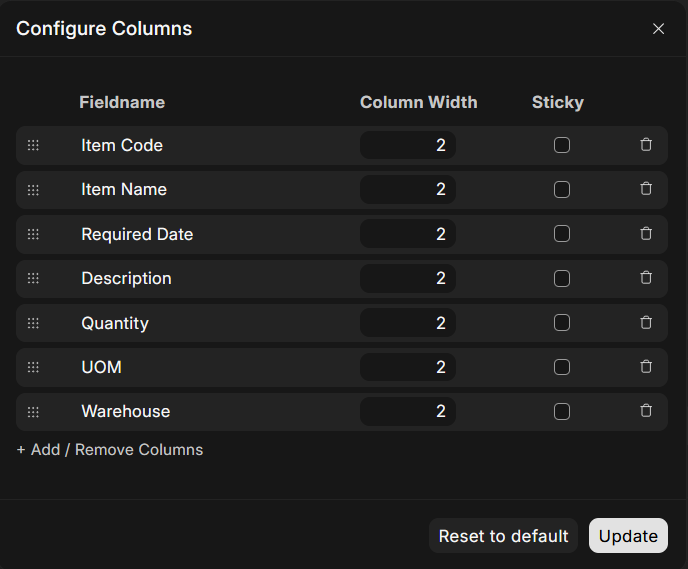
- Click on the Gear icon, a Configure Columns popup should appear.
- Click on the Add text to add a new column
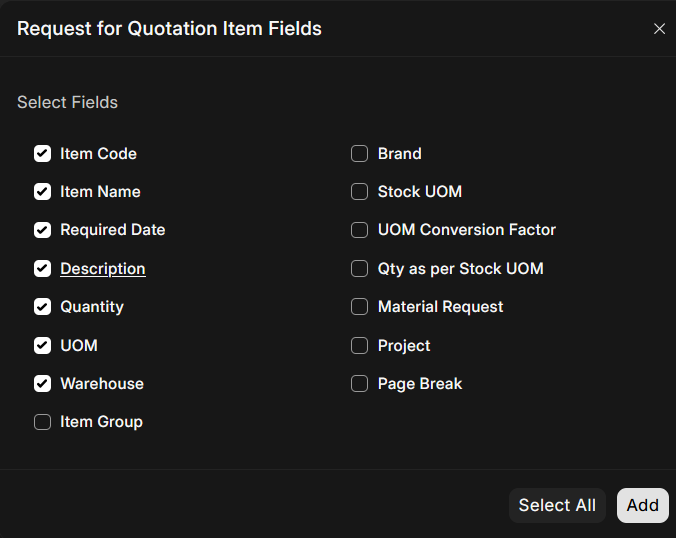
- Check the Description Field
You should be able to make multiple entries in quotation for a product, just make sure to change the description for each of the adhoc items.
Adhoc/Generic Item
You still need to create a generic item as ERPNext requires that at least one item be selected for a request for quotation. You can’t just rely on sending the request for quotation in the email, the order must have items associated with it.
- Go to Buying –> Request for Quotation
- Scroll down to the Items table
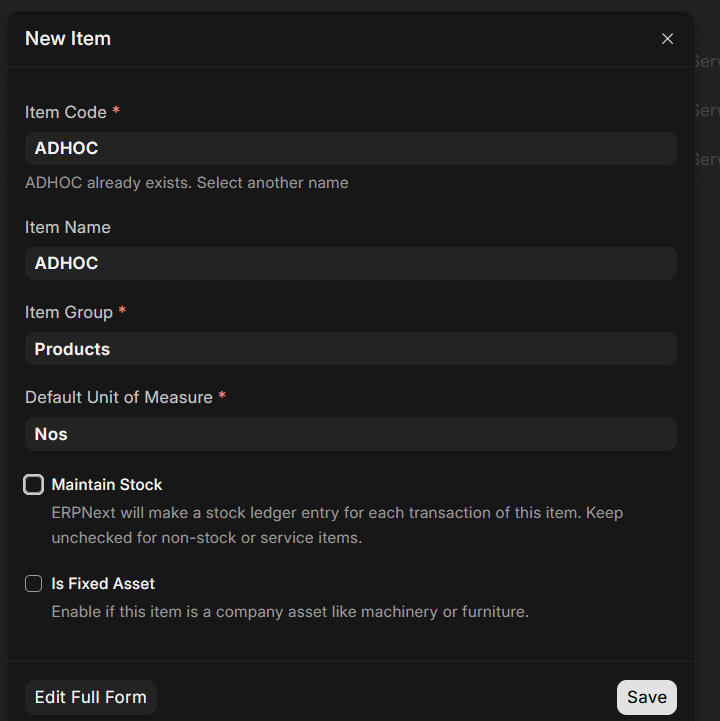
- Enter the text; “ADHOC”; or anything that you’d identify as “generic“ or “once-off“
- Create a new item
- Uncheck the “track stock“
- Click Save
You should be able to use “ADHOC“ as your product in the Request for Quotation.
Voorspoed! 73