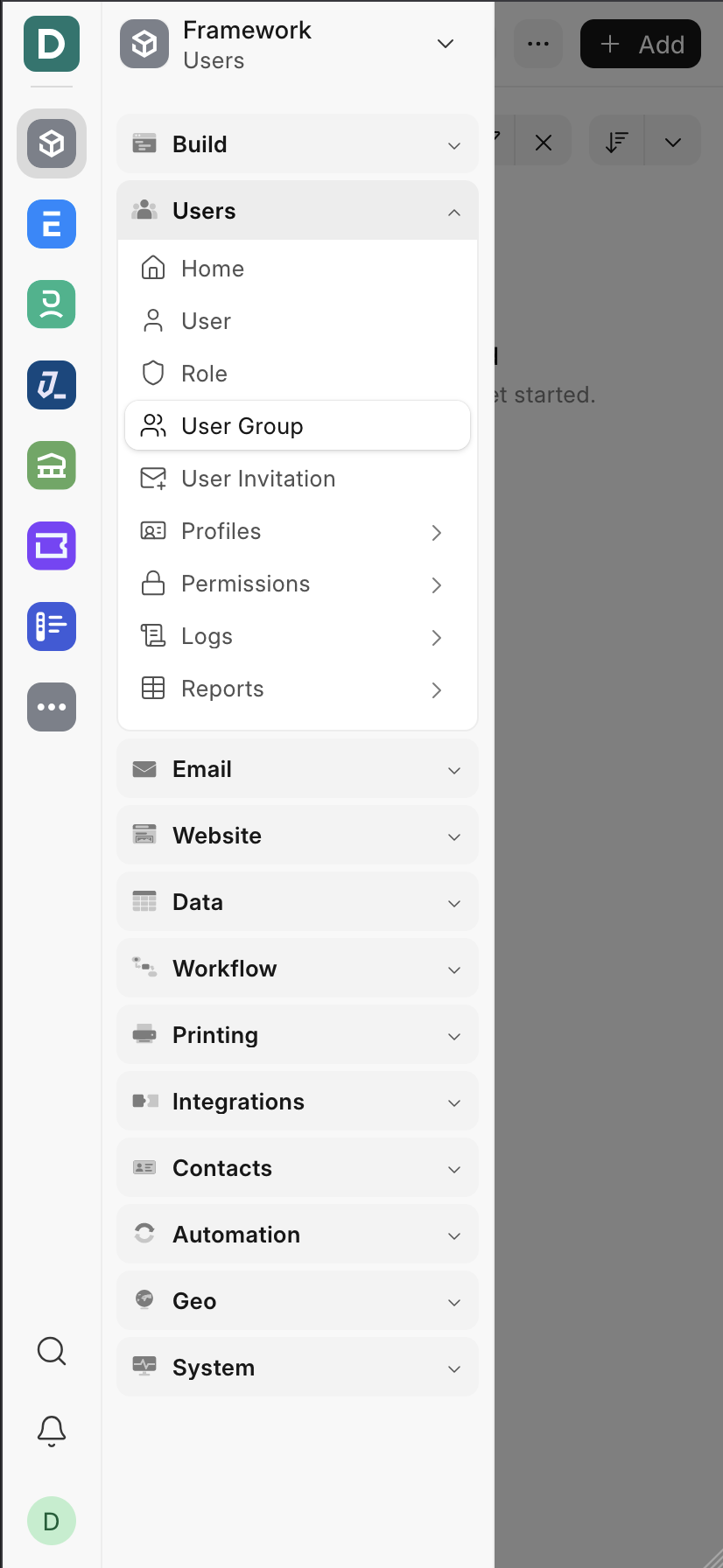
Open Desk, an app for customizing v16's navigation

Hello everyone,

I’m very excited for the direction that navigation is going in v16. Modules and sidebars as a semantic layer are transformative. There were some very rough ergonomic edges initially, but v16.50 has been a massive step forward.

That said, the sidebar rail just isn’t for me. I get what the dev team is trying to do, I think, but it just doesn’t reflect the way my organization uses Frappe.

We had already built some navigation features into our kitchen sink app, and v16.50 made most of that code redundant. When refactoring, I decided to spin it off into a separate app. This is still very much a proof of concept, and I wouldn’t recommend using it on a production server, but nevertheless I thought I’d share.

I also made a quick video demo. Apologies for the lousy narration…it’s completely unscripted.

The idea is that the leftmost rail is a fixed list of apps, always the same regardless of context. After clicking on an app, the sidebar lists available modules, and clicking on a module’s name displays its sidebar content.

This approach could probably be improved. The sidebar is doing double duty, and it’s one more click to move between modules in the same app. But, for me at least, the navigation is much more anchored to context.

Additionally, it was important to me to have “custom” apps. Some apps, like HRMS, map the new semantic layer really well, but other apps may span different functions. If you want, you can abstract away completely from the code-defined apps and provide whatever top-level inventory you want.

Regardless, the base hierarchy remains: Apps > Modules > Content.

All thoughts are welcome. I have no plans to distribute this application in any real way, but I’m sharing it here in case it’s useful, either as a proof of concept for design or as an implementation for somebody looking to do something different.

The best thing about frappe has always been its open architecture. I’m amazed by how easy it was to extend what the frappe teams has built to better suit my own individual needs.
Great Job. Really liked that!

looks promising

That looks great. Thanks for making the quick demo video as that helps to better understand how it works. Best part is that this navigation style respects and reflects the main hierarchy of Apps → Modules → DocTypes

That’s amazing!

amazing!!

@peterg Thanks for sharing! May I ask why exposing modules is important to you? Perhaps we use the system differently.

I really don’t care if Sales Invoice is part of Accounts or Selling Module. I just want to go to Sales Invoice (without unecessary clicks). The same is true for Customers, Items, Reports, etc.

I understand developers need to know as it represents a filesystem hierarchy.

I feel 99% of users navigated Versions 14 and 15 without knowing which module they were in (when creating Sales Invoices, editing customer data, addresses, contacts, etc).

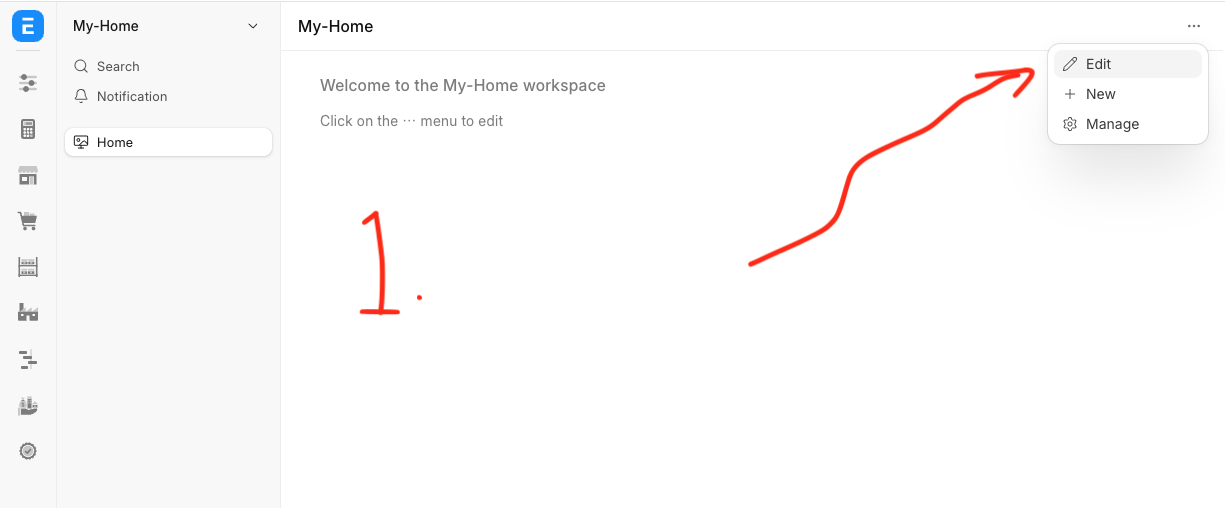
The way I use ERPNext V15 is by creating a custom workspace with all the commonly used DocTypes and number cards that I care about. I also heavily relied on the home button or app icon to bring me back to my custom workspace (no matter where I was in the system). Having that button removed hurts my productivity in a way that’s hard to explain. If I could simply have a permanent link to my custom workspace on Frappe’s dock or your custom app that would be great. I never need a direct link to a module. For things that I don’t use every day or every month, the awesome bar is my go to.

I tried creating a workspace , but I have no idea if it actually worked. I’m still investigating “how to create a personal workpace”.

EDIT: A little more detail on how heavily I used the home button/app icon. When I do monthly billing I would use that button 1-2 times per invoice.

  1. Home button to bring me to my workspace > click number card for draft timesheets > submit timesheet > create Sales invoice from timesheet > create payment request from Sales invoice
  2. Home button > back to item 1, rinse and repeat.

It’s not important to me that Salary Slip belongs to Payroll. It’s important to me that a thing called “Payroll” now exists.

Prior to v16, it didn’t, not in any meaningful way. Modules didn’t really do anything. Neither did apps. Everything just globbed together into a monolithic pile of doctypes, reports, pages, and tools. If you wanted to move from one doctype to another, search was the way to do it. That may have worked fine for power users, but as navigation it was completely disorienting.

Workspaces came in v13-v15 to address that. This was a step in the right direction, but the execution was very limited. They were bolted on to an architecture that itself didn’t have any hierarchy or structure.

Version 16 creates that hierarchy. Modules are semantic context, and sidebars are the most visible manifestation of that. When you’re looking at a Salary Slip, the sidebar immediately to its left lists everything else that’s related to it: Additional Earnings, Withholdings, Cost to Company reports, etc. Now, no document exists in isolation but always as part of a context. Module sidebars make that context explicit and visible.

Sure. You don’t need this app to do that. It’s default behavior in v16.

Go to Module Def, and create a new module called “My Corp” or whatever. That will automatically create a new sidebar with the same name. You can add it to another app’s dock if you want, or you can just navigate there directly at /desk/my-corp. If you want to be really fancy, make it the default login page for System Manager or whatever role you use.

Click the top button on the sidebar and click edit sidebar. Add whatever you want, including your previous workspace. It will always be there, accessible with a single click.

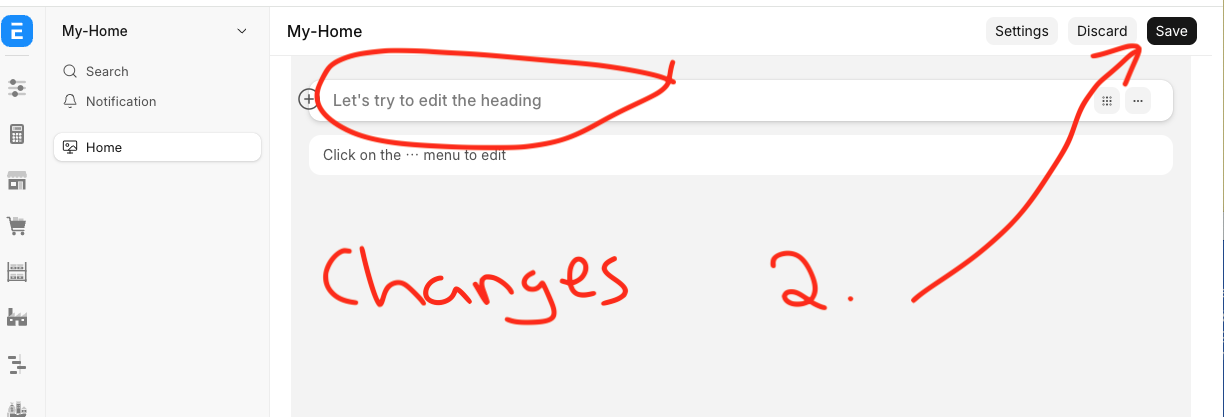
Thanks for the solid advice @peterg. Unfortunately I’m not able to save edits in the workspace.

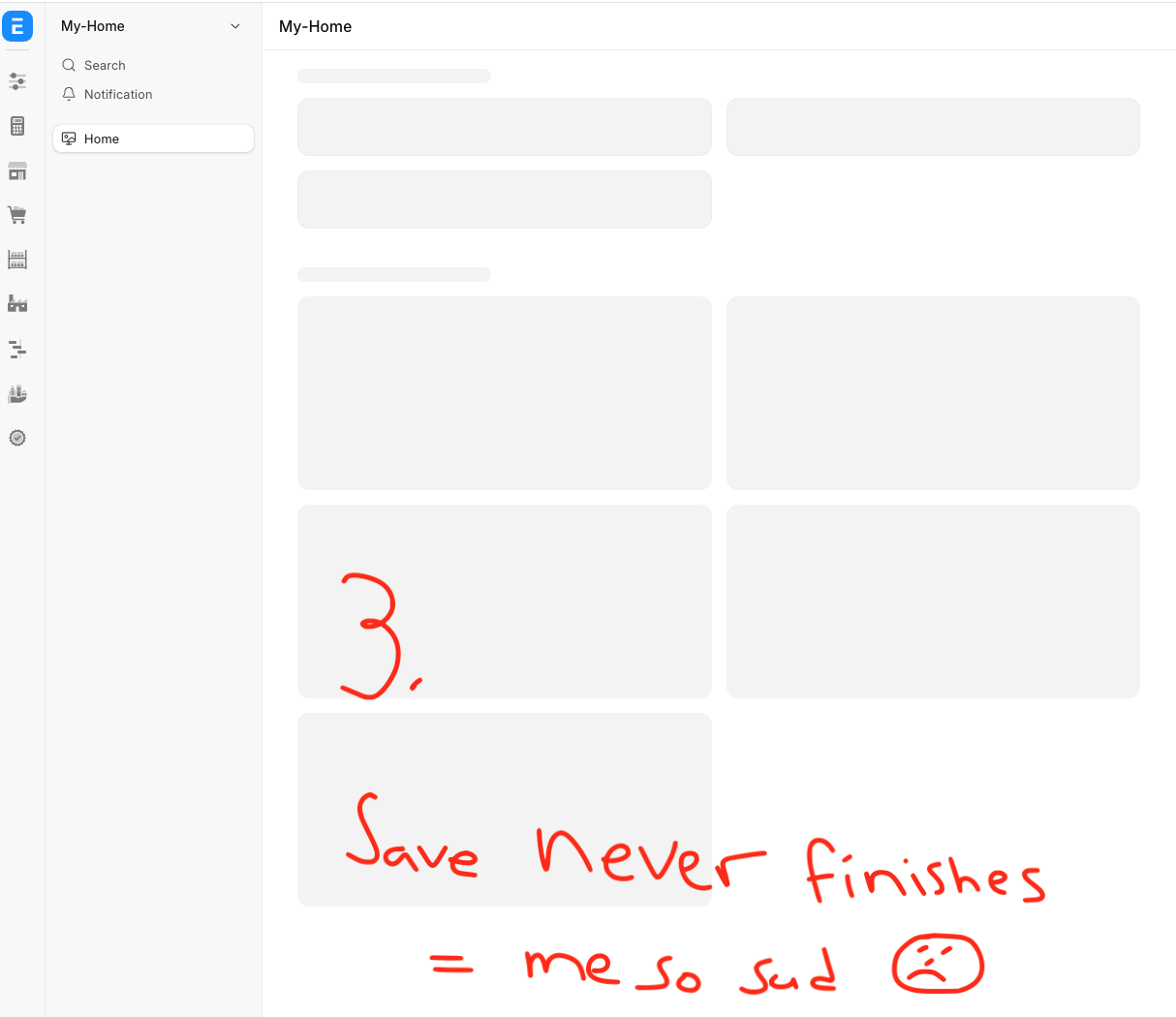
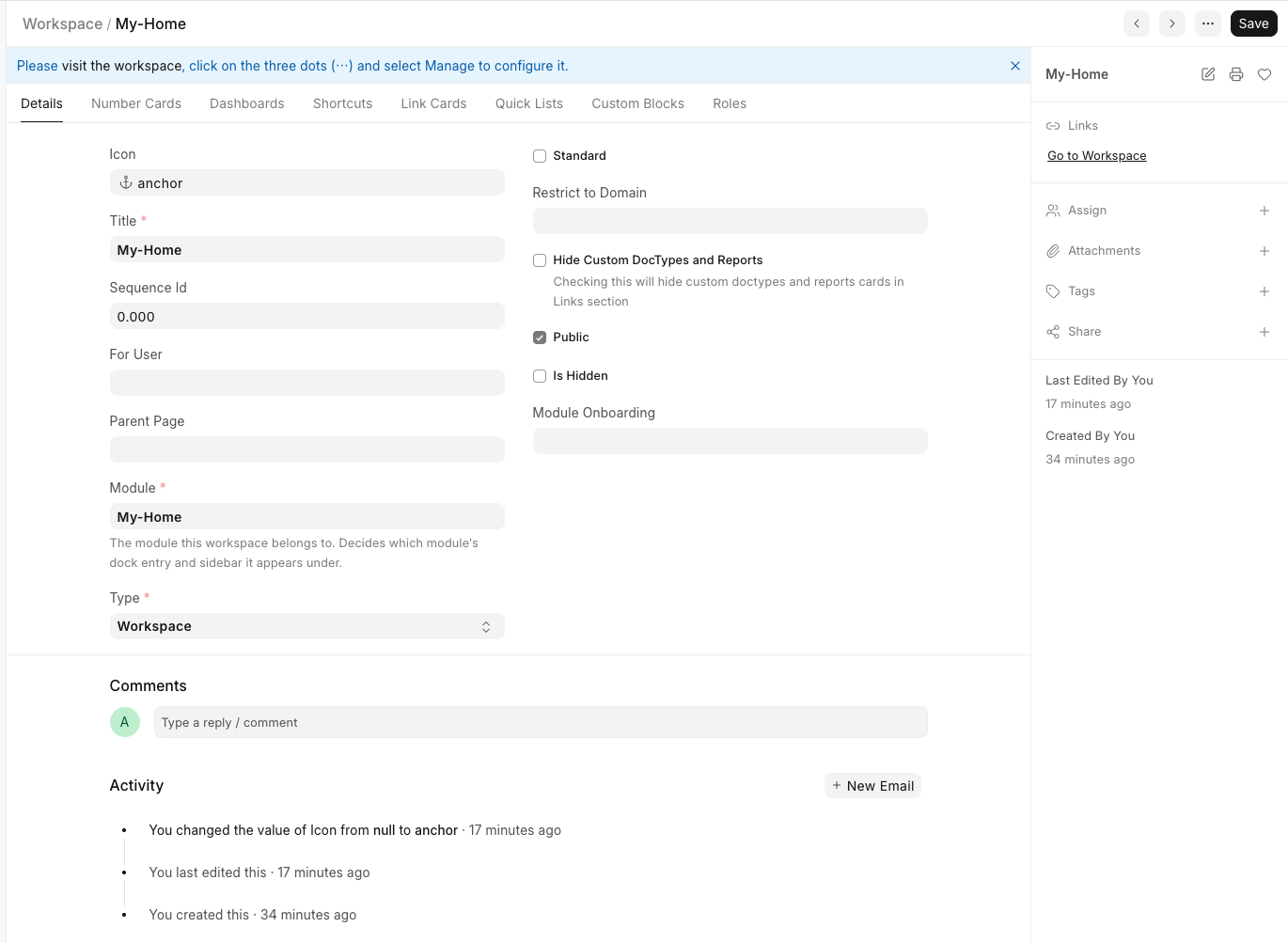
I created the module as suggested, navigated to the new workspace, made an edit, but the save button never completes the task. Are you on Frappe 16.51 and ERP 16.50? Can you confirm if you’re able to save a workspace in a custom module?

Is there something wrong or missing in the settings (I left them at the default)?

Do I need to set a user, parent, roles, etc.? I’m logged in as Administrator.

Yeah I think this is a bug. Sorry about that @volkswagner

@sohamkulkarni could you look into it please?

Here’s the trace from the browser:

request.js:497 Traceback (most recent call last):

  File "apps/frappe/frappe/utils/typing_validations.py", line 160, in transform_parameter_types

    current_arg_value_after = TypeAdapter(current_arg_type).validate_python(current_arg_value)

  File "env/lib/python3.14/site-packages/pydantic/type_adapter.py", line 441, in validate_python

    return self.validator.validate_python(

           ~~~~~~~~~~~~~~~~~~~~~~~~~~~~~~^

        object,

        ^^^^^^^

    ...<6 lines>...

        by_name=by_name,

        ^^^^^^^^^^^^^^^^

    )

    ^

pydantic_core._pydantic_core.ValidationError: 1 validation error for dict[any,any]

  Input should be a valid dictionary [type=dict_type, input_value='{}', input_type=str]

    For further information visit https://errors.pydantic.dev/2.12/v/dict_type


The above exception was the direct cause of the following exception:


Traceback (most recent call last):

  File "apps/frappe/frappe/app.py", line 158, in application

    response = frappe.api.handle(request)

  File "apps/frappe/frappe/api/__init__.py", line 63, in handle

    data = endpoint(**arguments)

  File "apps/frappe/frappe/api/v1.py", line 41, in handle_rpc_call

    return frappe.handler.handle()

           ~~~~~~~~~~~~~~~~~~~~~^^

  File "apps/frappe/frappe/handler.py", line 54, in handle

    data = execute_cmd(cmd)

  File "apps/frappe/frappe/handler.py", line 87, in execute_cmd

    return frappe.call(method, **frappe.form_dict)

           ~~~~~~~~~~~^^^^^^^^^^^^^^^^^^^^^^^^^^^^

  File "apps/frappe/frappe/__init__.py", line 1150, in call

    return fn(*args, **newargs)

  File "apps/frappe/frappe/utils/typing_validations.py", line 34, in wrapper

    args, kwargs = transform_parameter_types(func, args, kwargs)

                   ~~~~~~~~~~~~~~~~~~~~~~~~~^^^^^^^^^^^^^^^^^^^^

  File "apps/frappe/frappe/utils/typing_validations.py", line 162, in transform_parameter_types

    raise_type_error(func, current_arg, current_arg_type, current_arg_value, current_exception=e)

    ~~~~~~~~~~~~~~~~^^^^^^^^^^^^^^^^^^^^^^^^^^^^^^^^^^^^^^^^^^^^^^^^^^^^^^^^^^^^^^^^^^^^^^^^^^^^^

  File "apps/frappe/frappe/utils/typing_validations.py", line 73, in raise_type_error

    raise FrappeTypeError(

    ...<2 lines>...

    ) from current_exception

frappe.exceptions.FrappeTypeError: Argument 'new_widgets' in 'frappe.desk.doctype.workspace.workspace.save_page' should be of type 'dict' but got 'str' instead. 

Thanks to @sokumon

I can now create and save workspaces after patching via this change. More kinks to work out but this is a huge help.

I have fixed it but there is some other issue working on that.

An important remaining design problem is how and when to display modules lists.

The Frappe v16.50 design solves that with three levels:

  • the desktop is your app picker,
  • the side rail is your module picker, and
  • the sidebar is for content

That’s coherent, but the more I play with the more I think that it’s not viable. Going back to the desk to change between apps is disorienting, and there are too many modules for icon-only displays to work. Modules need to be displayed by name, in my opinion.

This app puts applications in the rail, more or less ditching the desktop screen. The desktop is still available, but it’s more like a “Welcome to Frappe” splash screen than an actual part of normal navigation.

Apps in the rail works well, I think, especially if synthetic/custom apps are possible. The question is, how to use the screen to display all three levels of hierarchy.

Any and all feedback is welcome! There are a lot of strong opinions on this, understandably, and it’s good to see productive discussion.

Original approach (Sliding Sidebar)

Originally, Open Desk used the sidebar for both module lists and content, sliding left and right between two layers of hierarchy. That’s definitely a compromise, but finding a better solution hasn’t been trivial.

opendesk-slider

I’ve added two more possible designs for users to play with, selectable from the settings.

Third column

This is an obvious answer, but it’s just so much screen real estate. Even for people with massive monitors, and even with the middle sidebar shrunk down, it just feels like too much space for navigation.

opendesk-threecol

Module Menu

This is the option I’m preferring now, though it’s still not perfect. Modules are listed in a dropdown menu, accessible either from the side rail (for all apps) or the top menu button (for the current app). It keeps the sidebar dedicated to content, but modules are much less prominent as hierarchy.

opendesk-modulemenu

I’m stuck in an airport today, so four more interaction possibilities (all selectable from the settings). I also added the capacity for navigation to remember either the last module or the last sidebar item you used for a given app.

App Menu

This option most closely resembles the base Frappe functionality but provides a way to switch modules from the rail. I still don’t think I like depending on module icons, but some might prefer this.

opendesk-appmenu

Module Tabs

Here, module selection gets pushed over to a top header. It’s space efficient but potentially not obvious.

opendesk-moduletabs

Rail Accordion

Another variation on the base Frappe implementation. This shows apps and modules in the rail, accordion style

opendesk-railaccordion

Sidebar Accordion

This shows all modules in the sidebar simultaneously, with one open at a time showing its sidebar content.

opendesk-sidebaraccordion

You have tried it all is all of this pushed in the app, will update and try

One of my users was unhappy with base navigation on mobile, and I’ll admit I hadn’t really checked how it works.

It seems the dock isn’t available on mobile screen sizes, which seems totally unnecessary. The slide-over menu uses less than half of the screen’s width on a modern smartphone, and there’s plenty of space for the dock. So, I added it back in opendesk.

I’ve always found navigation a bit of a pain on mobile, but with this small adjustment it has near parity to desktop.

Try moving primary rail as bottom bar for mobile.

Thanks Revant, but can you explain more? I’m not understanding yet.

Don’t worry, reinforcements are on the way
Mobile Shell. This is my attempt to create a decent workable mobile screen.

Yeah, I have to rotate my screen often when on mobile. The new Dock is not visible in portrait, but it is in landscape. Even with Version 15 I had to rotate the screen to make list view useful in many instances. It’s not a deal breaker but it is inconvenient.