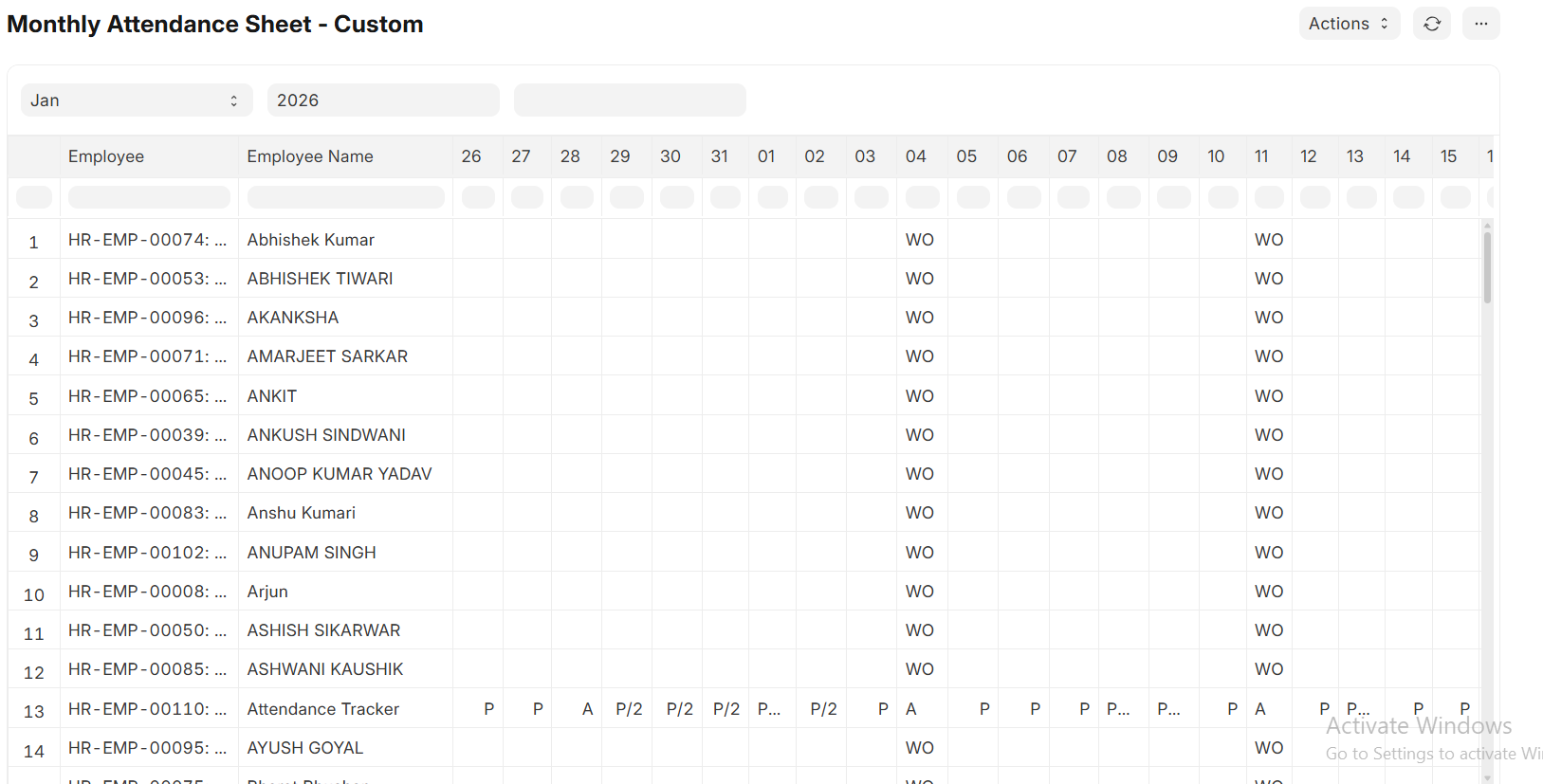
try this
Complete Solution: Custom Payroll Cycle Report (26th–25th) in ERPNext
Using Server Script – No File Access Required
1. The Problem
Your company follows a non‑standard payroll cycle:
| Payroll Month |
Working Period |
| January |
26 December – 25 January |
| February |
26 January – 25 February |
| March |
26 February – 25 March |
| … and so on |
|
ERPNext does not natively support this cycle.
If you try to create a Query Report with hard‑coded columns (1–31), you face:
- Invalid dates (e.g., 29–31 February in non‑leap years).
- Wrong date ranges (March report still shows February days 29–31).
- High maintenance (extra logic for 28‑day months, 30‑day months, leap years).
2. The Challenge – No Server Access
Your client is hosted on Frappe Cloud or a similar environment where:
 No SSH / shell access.
- No ability to edit Python files on the server.
- ERPNext is fully managed.
You need a solution that works 100% inside the browser, without custom apps or file modifications.
3. The Solution – Server Script (Script Report)
ERPNext provides a powerful built‑in feature: Server Script of type “Script Report”.
It lets you write Python code that runs on the server, but the code is stored in the database and executed via the web interface.
No file access is required – everything is done through the Frappe Desk.
Benefits
- Dynamic columns – columns are generated based on the actual days in the period.
- No invalid dates – the report respects calendar boundaries.
- Zero maintenance – works for every month, every year, leap years included.
- No server access needed – runs on Frappe Cloud and similar platforms.
- Future‑proof – survives system upgrades because it lives in the database.
4. Prerequisites
- ERPNext v14+ (Server Scripts are stable in these versions).
- The site must have
server_script_enabled set to 1.
- On Frappe Cloud it is enabled by default for all paid sites.
- On self‑hosted, check by running
bench --site yoursite set-config server_script_enabled 1.
5. Step‑by‑Step Implementation
Step 1 – Create a New Report (No Code Yet)
- Go to:
Home > Settings > Reports (or simply type “Report” in the awesome bar).
- Click + Add New Report.
- Fill the form:
| Field |
Value |
| Report Name |
Custom Payroll Report |
| Ref DocType |
Salary Slip (or Attendance – both work) |
| Report Type |
Script Report |
| Is Standard |
No (important!) |
| Module |
Choose your HR module (e.g., HR) |
- Do not close this page yet – we will add filters in the next step.
Step 2 – Define Report Filters
Inside the same report form, scroll down to the Filters section.
Add three filters by clicking Add Row:
| Label |
Fieldname |
Fieldtype |
Options (for Select) |
Mandatory |
| Company |
company |
Link |
Company |
Yes |
| Month |
month |
Select |
1\n2\n3\n4\n5\n6\n7\n8\n9\n10\n11\n12 |
Yes |
| Year |
year |
Select |
2024\n2025\n2026\n2027\n2028 |
Yes |
 You can add more years to the
 year filter later.
Now Save the report.
Step 3 – Create the Server Script (The “Brain”)
- Go to:
Home > Settings > Server Script.
- Click + Add New Server Script.
- Fill the form:
| Field |
Value |
| Script Type |
Script Report |
| Reference Report |
Select the report you just created: Custom Payroll Report |
| Enabled |
Yes |
- In the large Script text area, paste the complete Python code provided below.
6. The Complete Python Code (Copy & Paste)
# =============================================
# Custom Payroll Report – 26th to 25th Cycle
# ERPNext Server Script (Script Report)
# =============================================

import frappe
from frappe.utils import getdate, add_months, add_days, date_diff, cstr

def execute(filters=None):
    """
    Main entry point for the Script Report.
    Returns (columns, data)
    """
    # -------------------------------------------------
    # 1. Validate filters and calculate date range
    # -------------------------------------------------
    if not filters:
        filters = {}

    company = filters.get("company")
    month   = filters.get("month")
    year    = filters.get("year")

    if not company or not month or not year:
        frappe.throw("Please select Company, Month and Year.")

    # Convert month to integer
    try:
        month_int = int(month)
    except ValueError:
        frappe.throw("Invalid month selected.")

    # End date is always the 25th of the selected month/year
    end_date = getdate(f"{year}-{month_int:02d}-25")

    # Start date = 26th of the previous month
    # Equivalent to: end_date - 1 month + 1 day
    start_date = add_days(add_months(end_date, -1), 1)

    # Generate the list of all dates in the period
    num_days = date_diff(end_date, start_date) + 1
    dates_in_period = [add_days(start_date, i) for i in range(num_days)]

    # -------------------------------------------------
    # 2. Build dynamic columns
    # -------------------------------------------------
    columns = [
        {
            "label": "Employee ID",
            "fieldname": "employee",
            "fieldtype": "Link",
            "options": "Employee",
            "width": 140
        },
        {
            "label": "Employee Name",
            "fieldname": "employee_name",
            "fieldtype": "Data",
            "width": 160
        }
    ]

    # One column per date in the period
    for d in dates_in_period:
        date_obj = getdate(d)
        # Display as "25 Jan", "26 Feb", etc.
        col_label = date_obj.strftime("%d %b")
        col_fieldname = str(d)   # ISO date string
        columns.append({
            "label": col_label,
            "fieldname": col_fieldname,
            "fieldtype": "Data",
            "width": 80
        })

    # (Optional) Add summary columns at the end
    columns.extend([
        {
            "label": "Total Present",
            "fieldname": "total_present",
            "fieldtype": "Int",
            "width": 100
        },
        {
            "label": "Total Absent",
            "fieldname": "total_absent",
            "fieldtype": "Int",
            "width": 100
        },
        {
            "label": "Total Leave",
            "fieldname": "total_leave",
            "fieldtype": "Int",
            "width": 100
        }
    ])

    # -------------------------------------------------
    # 3. Fetch attendance data
    # -------------------------------------------------
    attendance_list = frappe.db.get_all(
        "Attendance",
        filters={
            "attendance_date": ["between", [start_date, end_date]],
            "docstatus": 1,
            "company": company
        },
        fields=["employee", "employee_name", "attendance_date", "status"]
    )

    # -------------------------------------------------
    # 4. Transform data into a pivot table
    # -------------------------------------------------
    employee_map = {}

    for att in attendance_list:
        emp = att.employee
        if emp not in employee_map:
            employee_map[emp] = {
                "employee": emp,
                "employee_name": att.employee_name,
                "total_present": 0,
                "total_absent": 0,
                "total_leave": 0
            }

        date_str = cstr(att.attendance_date)
        status = att.status

        # Map status to a short code
        short_code = {
            "Present": "P",
            "Absent": "A",
            "On Leave": "L",
            "Half Day": "HD"
        }.get(status, status[:2])  # fallback: first two letters

        employee_map[emp][date_str] = short_code

        # Count for summary columns
        if status == "Present":
            employee_map[emp]["total_present"] += 1
        elif status == "Absent":
            employee_map[emp]["total_absent"] += 1
        elif status in ["On Leave", "Half Day"]:
            employee_map[emp]["total_leave"] += 1

    # Convert map to list
    data = list(employee_map.values())

    # -------------------------------------------------
    # 5. Return columns and data
    # -------------------------------------------------
    return columns, data
Step 4 – Save and Enable
- Click Save.
- Make sure the Enabled checkbox is ticked.
- You are done – no file editing, no bench commands.
7. How to Run the Report
- Open the Awesome Bar and type “Custom Payroll Report”.
- The report will open with the three filters you defined.
- Select:
- Company (e.g., your company)
- Month (e.g., 3 for March)
- Year (e.g., 2026)
- Click “Get Data” (or “Show Report”).
What you will see:
- Columns dynamically generated for 26 Feb – 25 Mar (or any chosen period).
- No columns for 29, 30, 31 February – they simply do not appear.
- Each employee’s attendance status displayed under the correct day.
- Summary columns: Total Present, Total Absent, Total Leave.
8. Explanation of the Code (Key Parts)
| Code Block |
Purpose |
add_months(end_date, -1) |
Go back one month from the 25th of selected month. |
add_days(..., 1) |
Move to the 26th of the previous month. |
date_diff(end_date, start_date) + 1 |
Calculate the exact number of days in the period. |
dates_in_period = [...] |
Generate every date in the range (no hard‑coded 31). |
| Dynamic columns loop |
Create one column per date, with label like “25 Jan”. |
frappe.db.get_all("Attendance") |
Fetch all approved attendance records in the period. |
Pivot logic (employee_map) |
Convert row‑based attendance into column‑per‑day format. |
| Short status codes |
Save screen space: P, A, L, HD. |
| Summary counters |
Calculate totals while iterating. |