Hi guys 
Keeping up with the tradition, I am publishing a detailed step-by-step guide to install the latest ERPNext v16.
Earlier Guides:
Alright then, let’s start!
 Table of Contents:
- Step 1: Server Setup
- Step 2: Install Required Packages
- Step 3: Configure MySQL server
- Step 4: Install Node, NPM, Yarn
- Step 5: Initialize Frappe Bench
- Step 6: Create New Site & Install Frappe Framework
- Step 7: Setup Production Environment
- Step 8: Install ERPNext and other Apps
- Step 9: Custom Domain & SSL Setup
Pre-Requisites:
- Operating System: Linux Ubuntu 24.04 LTS
- SSH access to the server
- Software version requirements:
- Python 3.14
- Node 24
- Mardiadb 11.8
- Redis 6+
- Yarn 1.22+
- Pip 25.3+
 SERVER SETUP
1.1 Login to the server using SSH
1.2 Setup correct date and timezone
Check the server’s default timezone:
date

# Eg output: Fri Jan 16 02:29:39 UTC 2026
The default timezone is usually UTC. If you want to set a different timezone:
timedatectl set-timezone "America/Los_Angeles"
You can get the full list of IANA timezones here: List of tz database time zones - Wikipedia
1.3 Update & upgrade system packages
sudo apt-get update -y

sudo apt-get upgrade -y
1.4 Create a new user
We create this user as a security measure to avoid using root access.
This user will be added to the admin group and will have sudo privileges.
We will install Frappe Bench, ERPNext and other apps using this user.
sudo adduser [frappe-user]
usermod -aG sudo [frappe-user]
su [frappe-user]
cd /home/[frappe-user]/
Note: Replace [frappe-user] with your desired username.
For some cloud providers like AWS & Azure, you wont’t have root password access so you can simply run sudo -i when you login to the server using the default user (eg. ubuntu in AWS).
 INSTALL REQUIRED PACKAGES
Frappe Framework and ERPNext require many packages to run smoothly. In this step we will install all the required packages for the system to work correctly.
Note: During the installation of these packages the server might prompt you to confirm if you want to continue installing the package [Y/n]. Just hit “y” on your keyboard to continue.
2.1 Install Git
sudo apt-get install git -y
Check if GIT is correctly installed by running git --version
2.2 Install cURL
sudo apt-get install curl -y
Check if cURL is correctly installed by running curl --version
2.3 Install Python
Installing Python correctly is absolutely necessary for Frappe & ERPNext to work correctly.
Ubuntu 24.04 comes pre-installed with a system level Python (v3.12).
We will be installing additional Python tools like pip, venv, etc. as below:
sudo apt-get install python3-dev python3-pip python3-setuptools -y

sudo apt-get install python3-venv -y
Check if Python is correctly installed by running python3 --version
Note: Frappe v16 officially requires Python 3.14 and it’s officially recommended to install and manage Python virtual environment using the new uv package manager. In Frappe v15 and earlier versions we used the standard pip package manager and venv for managing virtual environments. This still works, but we will follow the official guidelines and use uv as below:
cd /home/[frappe-user]/

curl -LsSf https://astral.sh/uv/install.sh | sh

source ~/.bashrc

uv python install 3.14 --default
Check if uv is correctly installed by running uv –-version
Check if Python 3.14 is correctly installed by running python3 --version
2.4 Install other required packages
sudo apt-get install software-properties-common -y

sudo apt-get install xvfb libfontconfig -y

sudo apt-get install libmysqlclient-dev -y

sudo apt-get install pkg-config -y
2.5 Install Redis Server
sudo apt-get install redis-server -y
Check if Redis is correctly installed by running redis-server --version
2.6 Install wkhtmltopdf
Frappe uses wkhtmltopdf library to generate PDF documents. This is an outdated library so Frappe v16 now also supports Chrome based PDF generation. However, for compatibility purposes, we will still install wkhtmltopdf.
sudo wget https://github.com/wkhtmltopdf/packaging/releases/download/0.12.6.1-2/wkhtmltox_0.12.6.1-2.jammy_arm64.deb
# Change to amd64.deb depending on OS architecture

sudo dpkg -i wkhtmltox_0.12.6.1-2.jammy_arm64.deb
# Change to amd64.deb depending on OS architecture
# Running this command will show errors which we solve by running the next command

sudo apt-get -f install -y

sudo dpkg -i wkhtmltox_0.12.6.1-2.jammy_arm64.deb
Check if wkhtmltopdf is correctly installed by running wkhtmltopdf --version
Frappe requires a Qt patched version like this: wkhtmltopdf 0.12.6.1 (with patched qt)
 CONFIGURE MySQL SERVER
Frappe v16 required Mariadb 11.8+ so we will first install Mariadb server and client.
3.1 Install MariaDB server
sudo apt install mariadb-server mariadb-client -y
Check if MariaDB is correctly installed by running mysql –-version
3.2 Configure MariaDB server
sudo mysql_secure_installation
During the setup process, the server will prompt you with a few questions as below.
Follow the instructions to continue the setup;
- Enter current password for root: (Enter your SSH root user password or leave blank if you don’t have it)
- Switch to unix_socket authentication [Y/n]: Y
- Change the root password? [Y/n]: Y
It will ask you to set a new MySQL root password at this step. Set a new password. This password can be different from the SSH root user password. - Remove anonymous users? [Y/n] Y
- Disallow root login remotely? [Y/n]: N
This is set as N because we might want to access the database from a remote server for using business analytics software like Metabase / PowerBI / Tableau, etc. - Remove test database and access to it? [Y/n]: Y
- Reload privilege tables now? [Y/n]: Y
3.3 Update MariaDB config file
sudo nano /etc/mysql/my.cnf
Add the below code block at the end of the file:
[mysqld]
character-set-client-handshake = FALSE
character-set-server = utf8mb4
collation-server = utf8mb4_unicode_ci

[mysql]
default-character-set = utf8mb4
If you don’t know how to use nano editor:
- Once the file is open, paste the above code and hit
CTRL+X - Enter “Y” when prompted and hit
Enter
3.4 Restart MariaDB server
We will now restart the MariaDB server for the config changes to take effect:
sudo service mysql restart
 INSTALL Node, NPM, Yarn
4.1 Install Node
Frappe v16 requires Node 24. We will install it using Node Version Manager (nvm) as below:
cd /home/[frappe-user]/

curl https://raw.githubusercontent.com/creationix/nvm/master/install.sh | bash

source ~/.profile

nvm install 24

nvm use 24
Check if Node is correctly installed by running node --version
4.2 Install Node Package Manager (npm)
sudo apt-get install npm -y
Check if npm is correctly installed by running npm --version
4.3 Install Yarn
sudo npm install -g yarn
Check if yarn is correctly installed by running yarn --version
 Initialize Frappe Bench
5.1 Install Frappe Bench
Frappe Bench is the command line utility (CLI tool) to manage Frappe sites and applications. Frappe v15 and earlier versions used pip to install Bench but in Frappe v16 as per the official recommendation, we will now use uv package manager to install Bench.
uv tool install frappe-bench
Check if bench is correctly installed by running bench --version
5.2 Initialize Frappe Bench
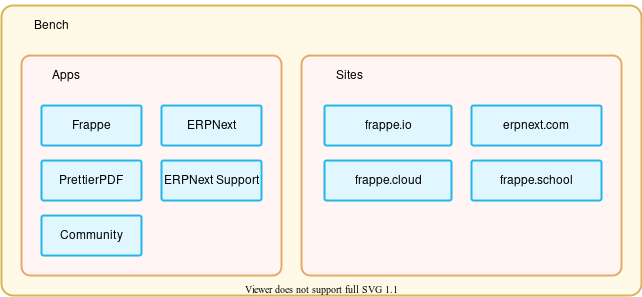
When Frappe Bench is initialized, it created a folder. Think of this folder as a container for all the sites and apps that we will be installing later.
cd /home/[frappe-user]/

bench init --frappe-branch version-16 frappe-bench
5.3 Set bench directory permissions
Bench folder will be the location from where we will be running all the Bench commands.
The full path of this directory will be: /home/[frappe-user]/frappe-bench/
We will also allow execution permission to the Frappe user’s home directory.
cd /home/[frappe-user]/frappe-bench/

sudo chmod -R o+rx /home/frappe-user/
Here’s a small diagram to understand how Bench works:
 CREATE NEW SITE & INSTALL FRAPPE FRAMEWORK
6.1 Create new site
This will create a new Frappe site inside the Frappe Bench folder. As part of the site creation process it will:
- Create a new database on MariaDB server
- Create a new database user and assign in to the newly created database
- Install Frappe Framework app on the site
- Setup the Administrator user
bench new-site site1.local
Note: During the site creation process, it will ask you to setup the password for the Administrator user. This user will have full system wide privileges so please use a strong password.
 SETUP PRODUCTION ENVIRONMENT
To setup production environment we will be using the supervisor process manager to manage all important processes required to run Frappe & ERPNext smoothly.
7.1 Enable Scheduler Service
bench --site site1.local enable-scheduler
7.2 Disabled Maintenance Mode
bench --site site1.local set-maintenance-mode off
7.3 Bench Setup Production
In Frappe v15 and earlier we used to directly run sudo bench setup production but it no longer works in Frappe v16. The main reason is because we now use uv package manager and not pip but the setup uses pip to install Ansible. We will be installing Ansible separately and then running the bench setup command as below:
sudo apt install -y ansible

sudo env "PATH=$PATH" bench setup production [frappe-user]
Depending on the network speed, it will take around 5-7 minutes for the full production setup to complete.
7.4 Setup NGINX web server
bench setup nginx
7.5 Restart all services using supervisor
sudo supervisorctl restart all

sudo supervisorctl status
After running the above command it should show a status of all services as below:
frappe-bench-16-redis-cache             RUNNING
frappe-bench-16-redis-queue             RUNNING
frappe-bench-16-frappe-web              RUNNING
frappe-bench-16-node-socketio           RUNNING
frappe-bench-16-frappe-long-worker-0    RUNNING
frappe-bench-16-frappe-schedule         RUNNING
frappe-bench-16-frappe-short-worker-0   RUNNING
Note: If it fails to show the status of the running services then run the following commands:
ls -l /etc/supervisor/conf.d/
# Above command should show a frappe-bench.conf file.
#If it's missing then proceed to run next commands.

sudo ln -sf /home/[frappe-user]/frappe-bench/config/supervisor.conf /etc/supervisor/conf.d/frappe-bench.conf
# Replace the [frappe-user] with the correct username

sudo supervisorctl reread

sudo supervisorctl update

sudo supervisorctl restart all

sudo supervisorctl status
Now it should correctly show the statuses all the running services.
 INSTALL ERPNEXT & OTHER APPS
8.1 Fetch apps from GitHub
Now that we have our site ready, next we will install ERPNext and other apps like HRMS, etc.
bench get-app --branch version-16 erpnext

bench get-app --branch version-16 hrms
8.2 Install apps on the site
We will now install the apps on our site as below:
bench --site site1.local install-app erpnext

bench --site site1.local install-app hrms
If you encounter any errors during the installation process, please share it in the comments below so that I can help you resolve them.
Check if ERPNext and HRMS apps are correctly installed by running bench version --format table
 Ready to Go!
Open your browser and go to [server-ip-address]:80 and you will have a fresh new installation of ERPNext ready to be setup and configured!

After successfully setting up, you will be greeted by the all new desktop in Frappe ERPNext v16!
If you are facing any issues with the ports, make sure to enable all the necessary ports on your firewall using the below commands:
sudo ufw allow 22,25,143,80,443,3306,3022,8000/tcp
sudo ufw enable
 CUSTOM DOMAIN & SSL
Up until this step, we have created a localhost site “site1.local” which can be directly accessed from the server IP address. Next, if you want to access ERPNext using your a custom domain, the follow the steps below.
9.1 Enable DNS multi-tenancy
By default, Frappe uses ports based multi-tenancy. To use custom domains we have to enable DNS based multi-tenancy as below:
cd /home/[frappe-user]/frappe-bench/

bench config dns_multitenant on
9.2 Add “A” record in your domain DNS
Login to your domain name control panel and go DNS settings.
Add a new “A” record and point it to your server IP address.
Eg: A record subdomain.yourdomain.com → 123.456.78.90
9.3 Rename your localhost site and link it to custom domain
This step will create a new entry for your custom domain in the NGINX web server config file and point it to the correct Frappe site.
bench setup add-domain [subdomain.yourdomain.com] --site site1.local

bench setup nginx
sudo service nginx reload
9.4 Install SSL certificate
We will install Let’s Encrypt free SSL certificate to enable https:// access.
sudo snap install core
sudo snap refresh core
sudo snap install --classic certbot

sudo ln -s /snap/bin/certbot /usr/bin/certbot

sudo certbot --nginx
During the installation of SSL certificate, it will prompt you for some details like email, etc. and then finally show you a list of domains available for SSL setup. Enter the correct number in front of the domain for which you want to install SSL and hit enter.
 Explore & have fun!
You now have a fully production ready setup of Frappe & ERPNext on your server! The last step is to explore the amazing world of Frappe ERPNext and have fun!
If you encounter any issues during the installation process or if you have any feedback to share, feel free to drop in your comments below.
Thanks,
Shashank
Important Links: