Hide/Delete Menu Items in Frappe Forms and List Views
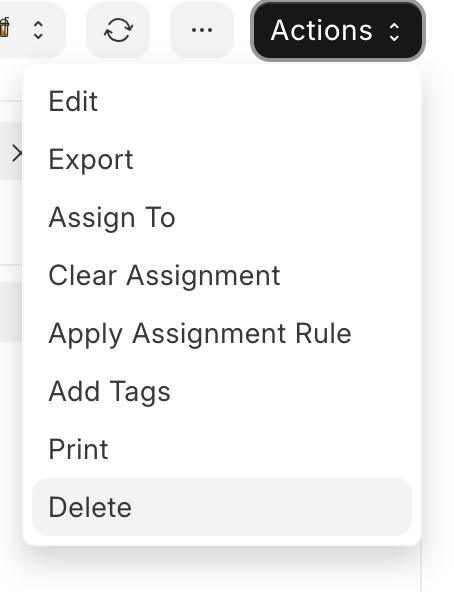
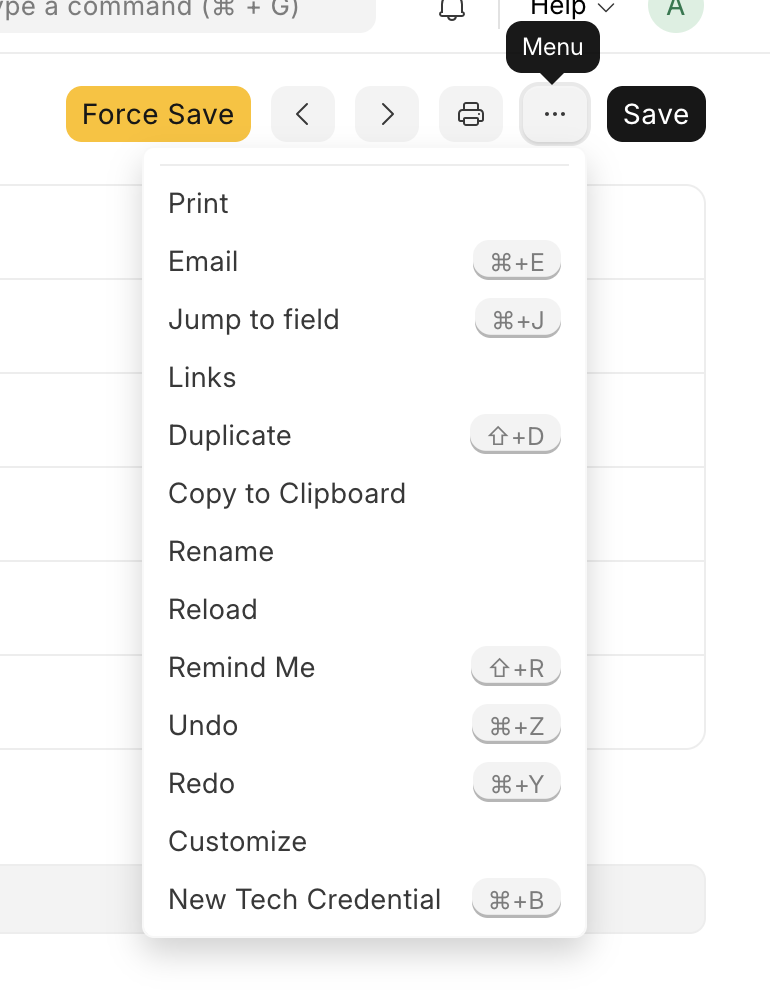
Sometimes we need to prevent users from accessing certain actions from the menu, such as Delete, Rename, or any custom menu item.
Frappe does not provide a standard client-side API for hiding every menu item. However, since menu items are rendered in the page DOM, we can use jQuery selectors to locate and remove them after the page is loaded.
This approach is commonly used in Client Scripts and custom JavaScript files.
1. Hide Menu Items in Form View
Code
frappe.ui.form.on('Sales Order', {
    refresh(frm) {
        const items_to_hide = ['Delete'];

        items_to_hide.forEach(label => {
            const $item = frm.page.menu.find(
                `li:has(.menu-item-label:contains("${label}"))`
            );

            if ($item.length) {
                $item.remove();
            }
        });
    }
});
How it Works
During the refresh event:
- Access the form menu using:
frm.page.menu
- Search for menu items containing the specified label.
li:has(.menu-item-label:contains("Delete"))
- Remove the matching menu item from the DOM.
$item.remove();
Result
Before:
Menu
 ├─ Rename
 ├─ Duplicate
 ├─ Delete
 └─ Print
After:
Menu
 ├─ Rename
 ├─ Duplicate
 └─ Print
2. Hide Menu Items in List View
Code
frappe.listview_settings['Sales Order'] = {
    refresh(listview) {

        const items_to_hide = ['Delete'];

        items_to_hide.forEach(label => {
            const $item = listview.page.actions.find(
                `li:has(.menu-item-label:contains("${label}"))`
            );

            if ($item.length) {
                $item.remove();
            }
        });
    }
};
How it Works
In List View, action buttons are rendered inside:
listview.page.actions
The script:
- Locates the Actions dropdown.
- Searches for the specified menu item.
- Removes it from the DOM.
Hide Multiple Menu Items
Instead of hiding only Delete, we can hide multiple items.
const items_to_hide = [
    'Delete',
    'Rename',
    'Duplicate'
];
The same logic will remove all matching entries.
Conditional Hiding
You can hide menu items only for specific users or roles.
Example:
if (!frappe.user.has_role('System Manager')) {

    const items_to_hide = ['Delete'];

    items_to_hide.forEach(label => {
        const $item = frm.page.menu.find(
            `li:has(.menu-item-label:contains("${label}"))`
        );

        if ($item.length) {
            $item.remove();
        }
    });
}
Important Note
This is a UI-level customization only.
Removing the menu item:
$item.remove();
does not remove backend permissions.
If a user still has Delete permission, they may be able to delete records through:
- API calls
- Custom scripts
- Other entry points
For proper security, always configure permissions using:
Role Permission Manager
or
User Permissions
The UI customization should be treated as a usability enhancement, not a security mechanism.
Recommended Use Cases
- Hide Delete for operational users.
- Hide Rename on master data.
- Hide Duplicate when document duplication is not allowed.
- Simplify the menu for end users.
- Remove custom menu items based on business rules.
Summary
Form View:
frm.page.menu.find(...)
List View:
listview.page.actions.find(...)
Remove menu item:
$item.remove();
Hide multiple items:
const items_to_hide = [
    'Delete',
    'Rename',
    'Duplicate'
];
Always remember:
Hiding a menu item improves the user experience, but actual access control must be enforced through Frappe permissions.