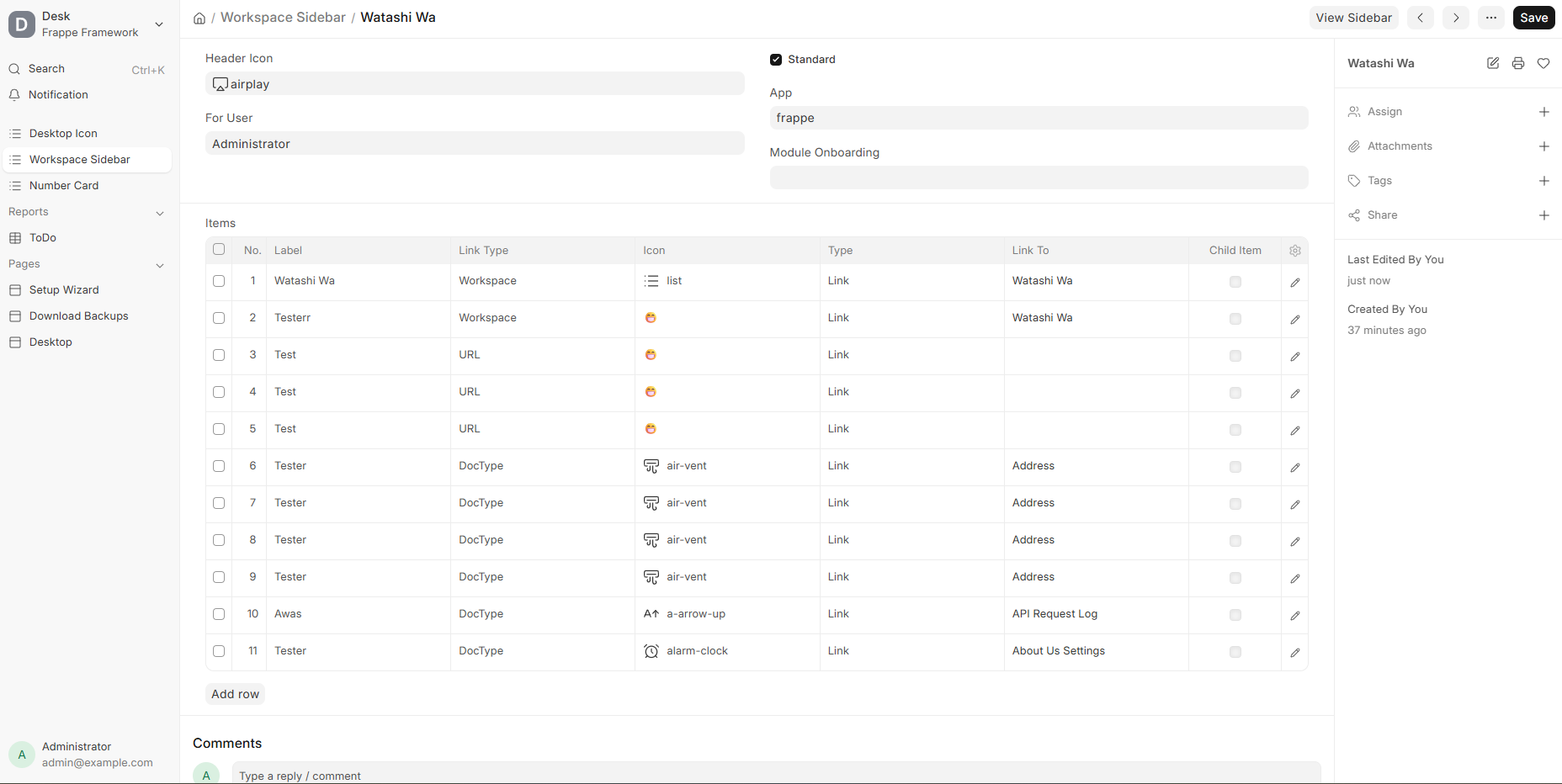
I have created a Workspace Sidebar, and it works fine, but it does not appear anywhere.
Is there a hidden way to actually attach the Workspace Sidebar to an actual Workspace ?
I’m experiencing the same issue, and it’s very frustrating due to the zero, outdated, or missing documentation. I asked the same question but received no help.
I am not from Frappe team, but please consider that many changes was included by last weeks, even today a lot of things are being polished, based on users feedback. I suggest just wait a few days, when new desk / workspace / sidebar sytems become really stable. Then I am pretty sure that docs will come.
To make your app appear in the main menu, you must add it to hooks.py with an image, description, respective route, and associated permissions. See below:
# Each item in the list will be shown as an app in the apps page
# add_to_apps_screen = [
# 	{
# 		"name": "Your App Name",
# 		"logo": "/assets/your_app/logo.png",
# 		"title": "Your App Title",
# 		"route": "/your_app",
# 		"has_permission": "your_app.api.permission.has_app_permission"
# 	}
# ]
hey, tried updating the version to 16.4
still encountering the same issue.
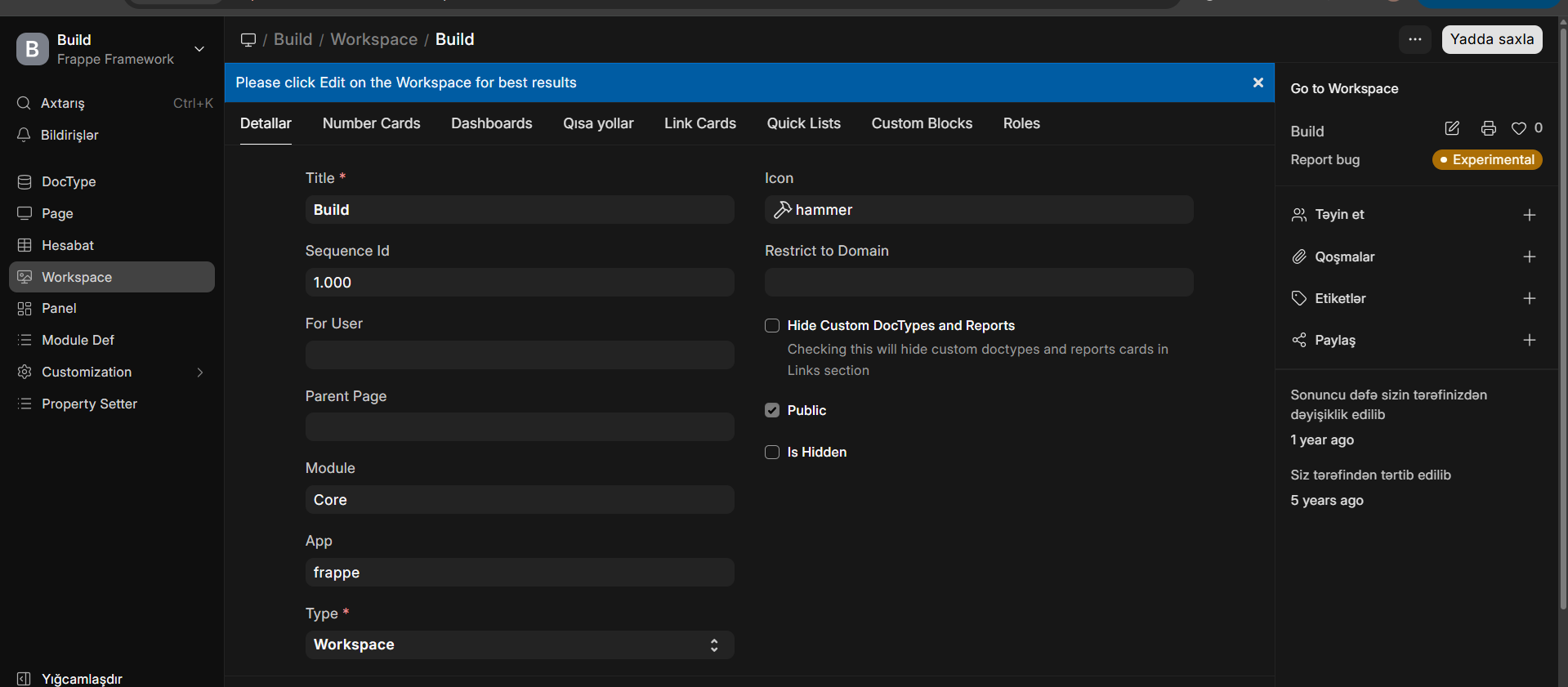
i created workspaces and followed the images that you’ve sent. still have no idea why it isn’t working.
v16 is so confusing with outdated docs, the latest v15 was much more easier
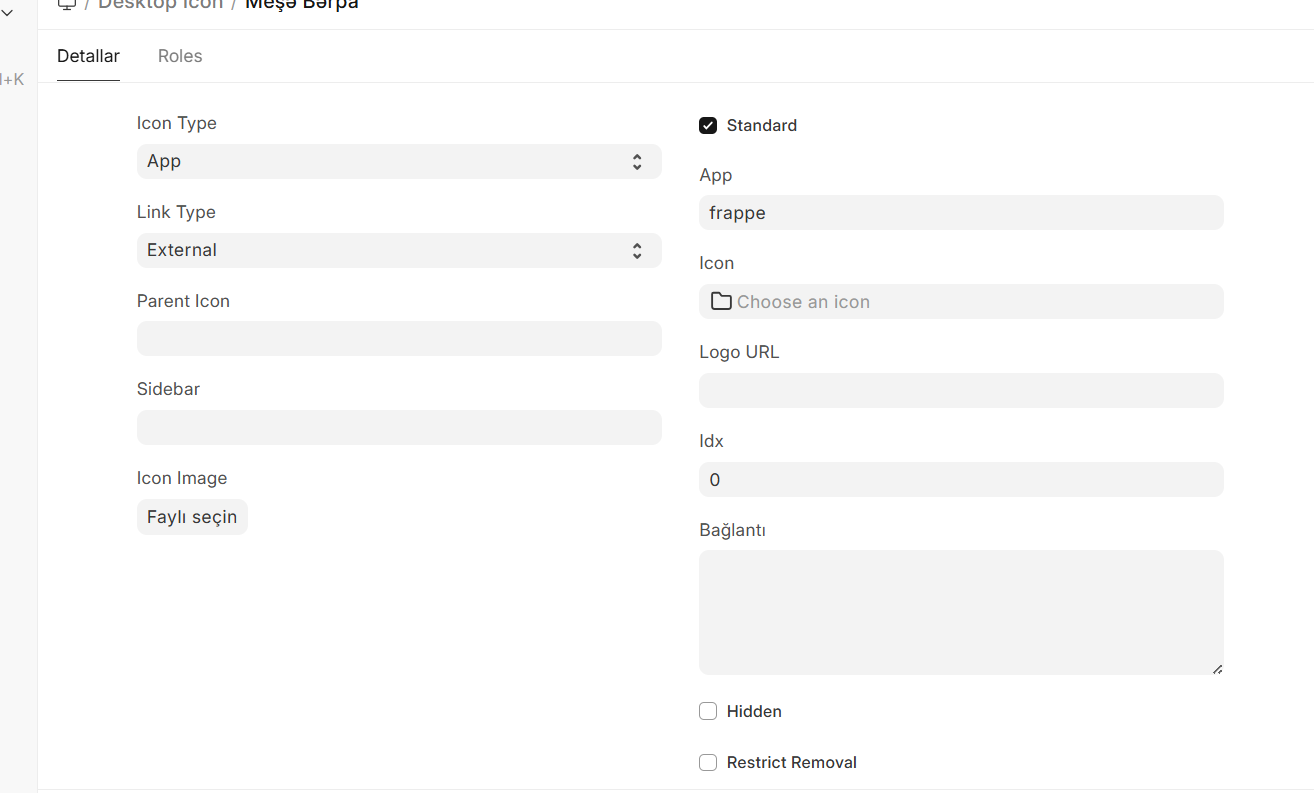
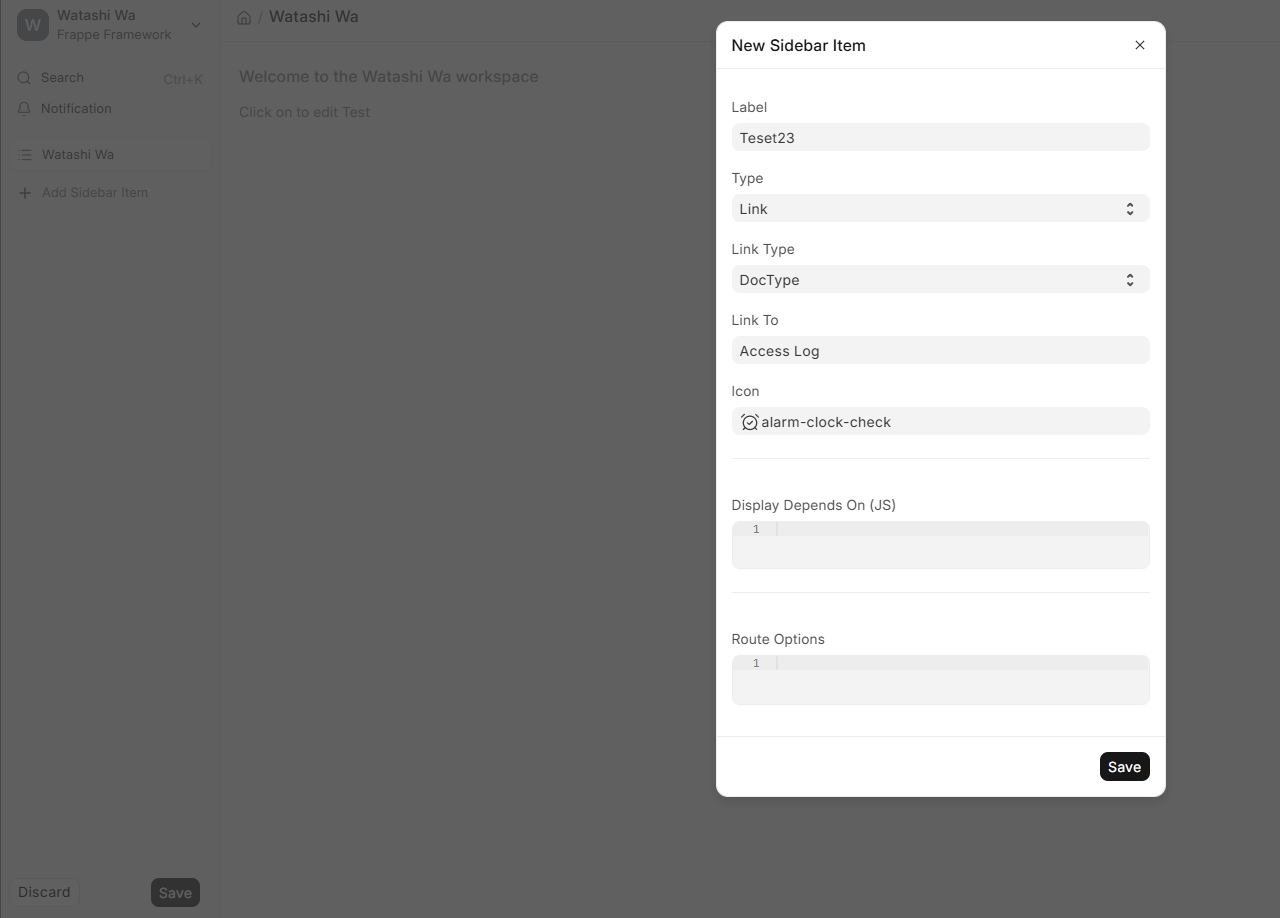
You made link type External, try with workspace sidebar
A little tip: Try to create duplicate of the icon you want to recreate. For example you can duplicate framework desktop icon for creating Folder space for other desktop icons
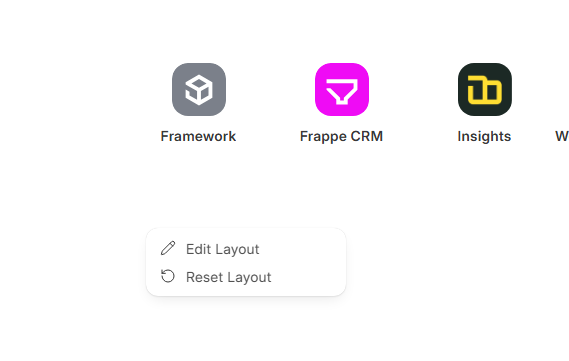
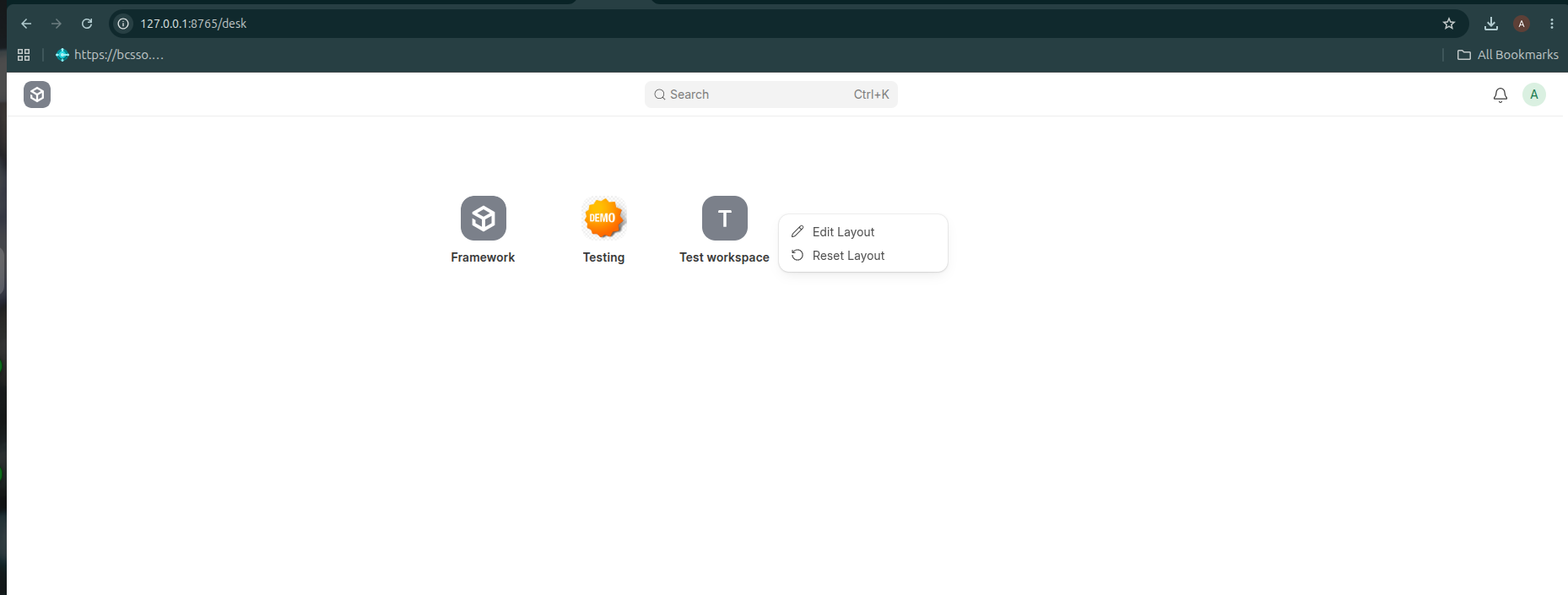
This is the correct way. It was difficult to know that way to create workspace is by right click from existing icons. It doesn’t match with frappe’s other ux .
hey guys, when you edit sidebar in your workspace do you receive also this kind of error?
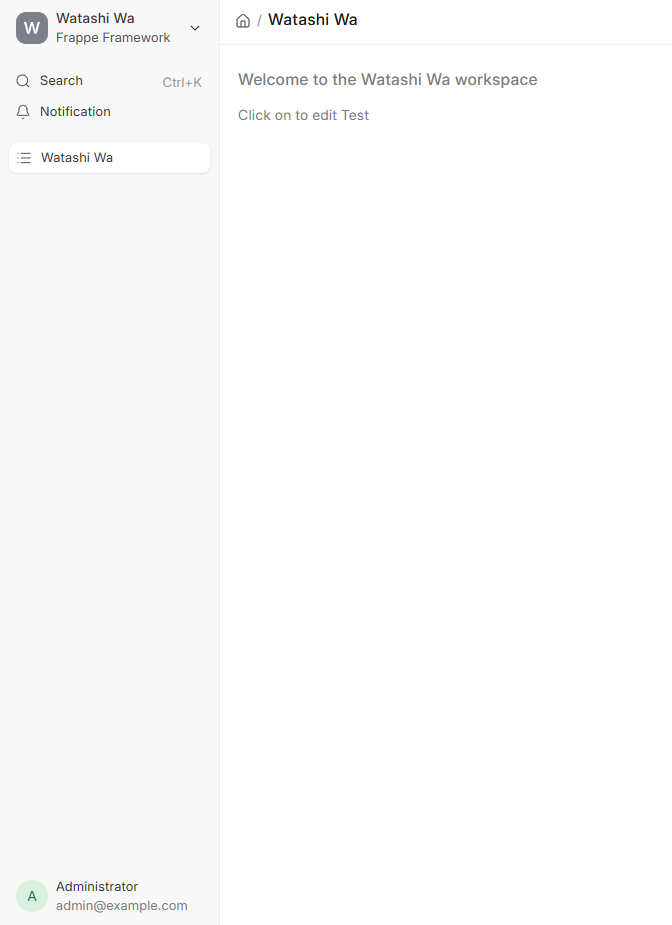
edited the sidebar → no changes made.
but when checking the sidebar it shows the full list but only invincible in the workspace.
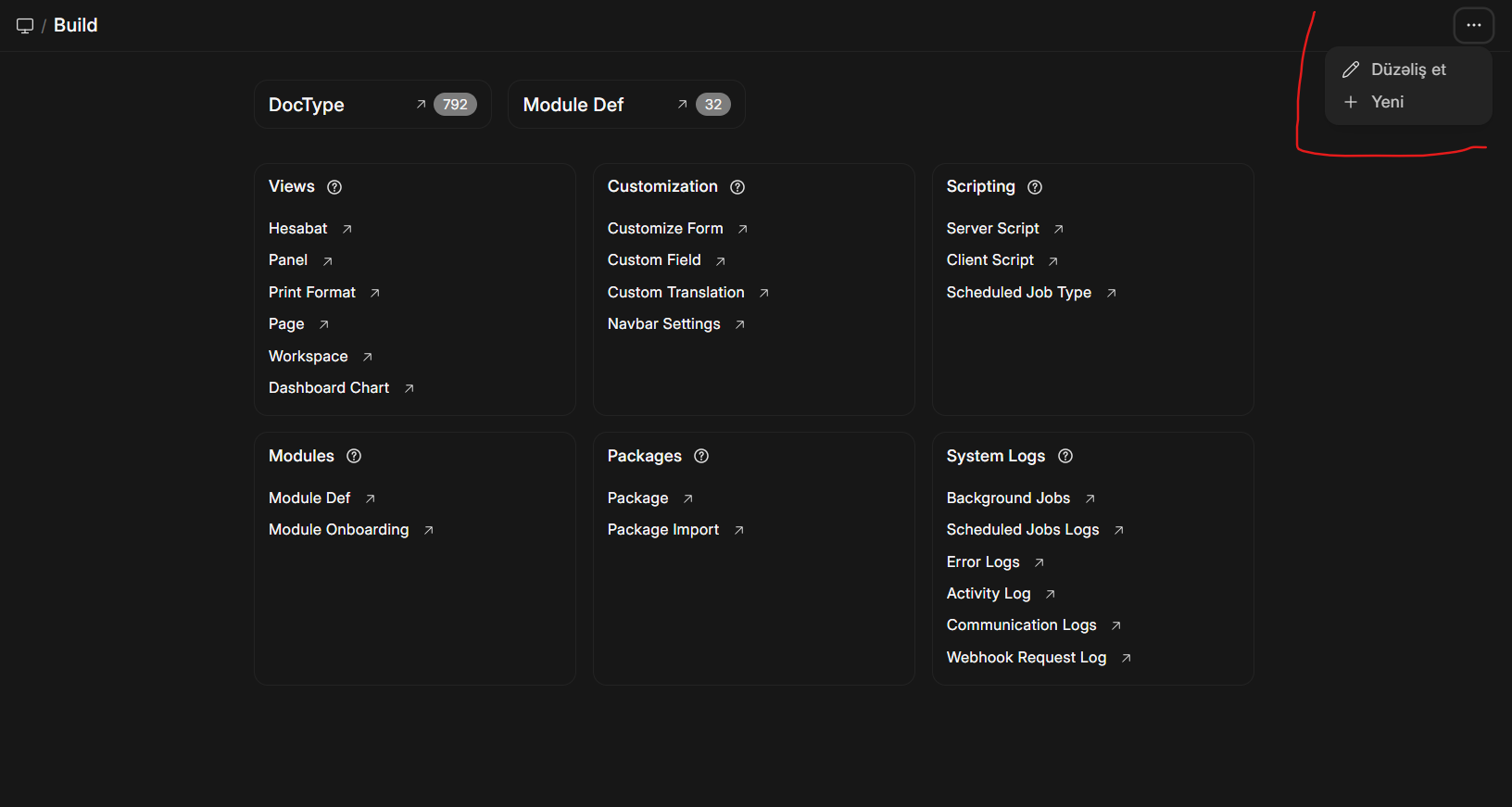
This is the right answer - right clicking on the homepage with icons. I do not like this hidden option. The problem is that clicking on three dots does not display “+New” any more.