Hello everyone!
As many of you know, integrating biometric attendance devices with ERPNext requires a reliable bridge between the hardware and the ERP system. ERPNext itself recommends ZKTeco devices for this purpose, and after some trial and error, we’ve successfully set up a full end-to-end integration. Here’s how we did it.
The Integration Flow
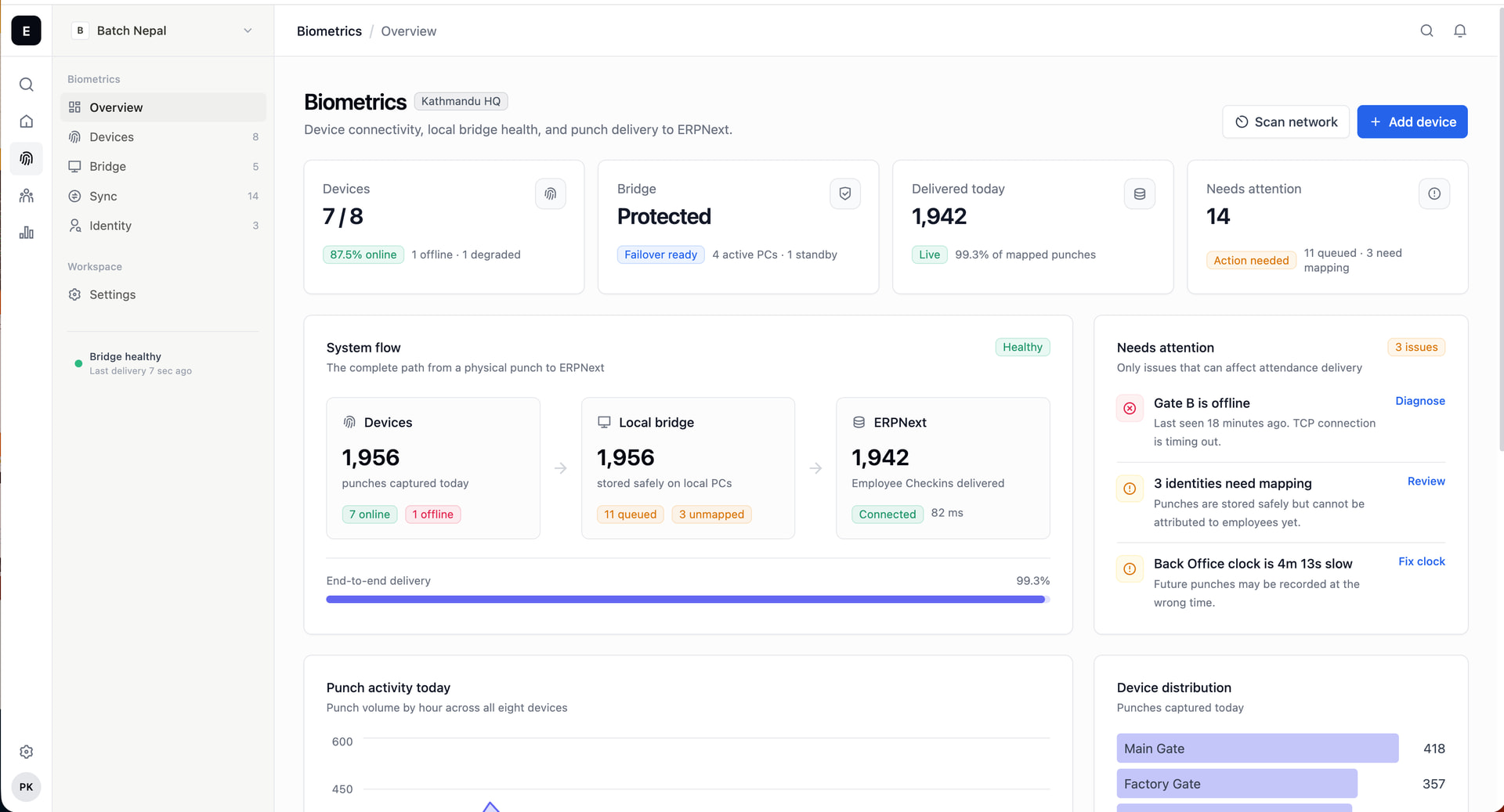
ZKTeco Device → ZKBio Time Software → zkteco_checkins_sync (Frappe App) → ERPNext
How It Works
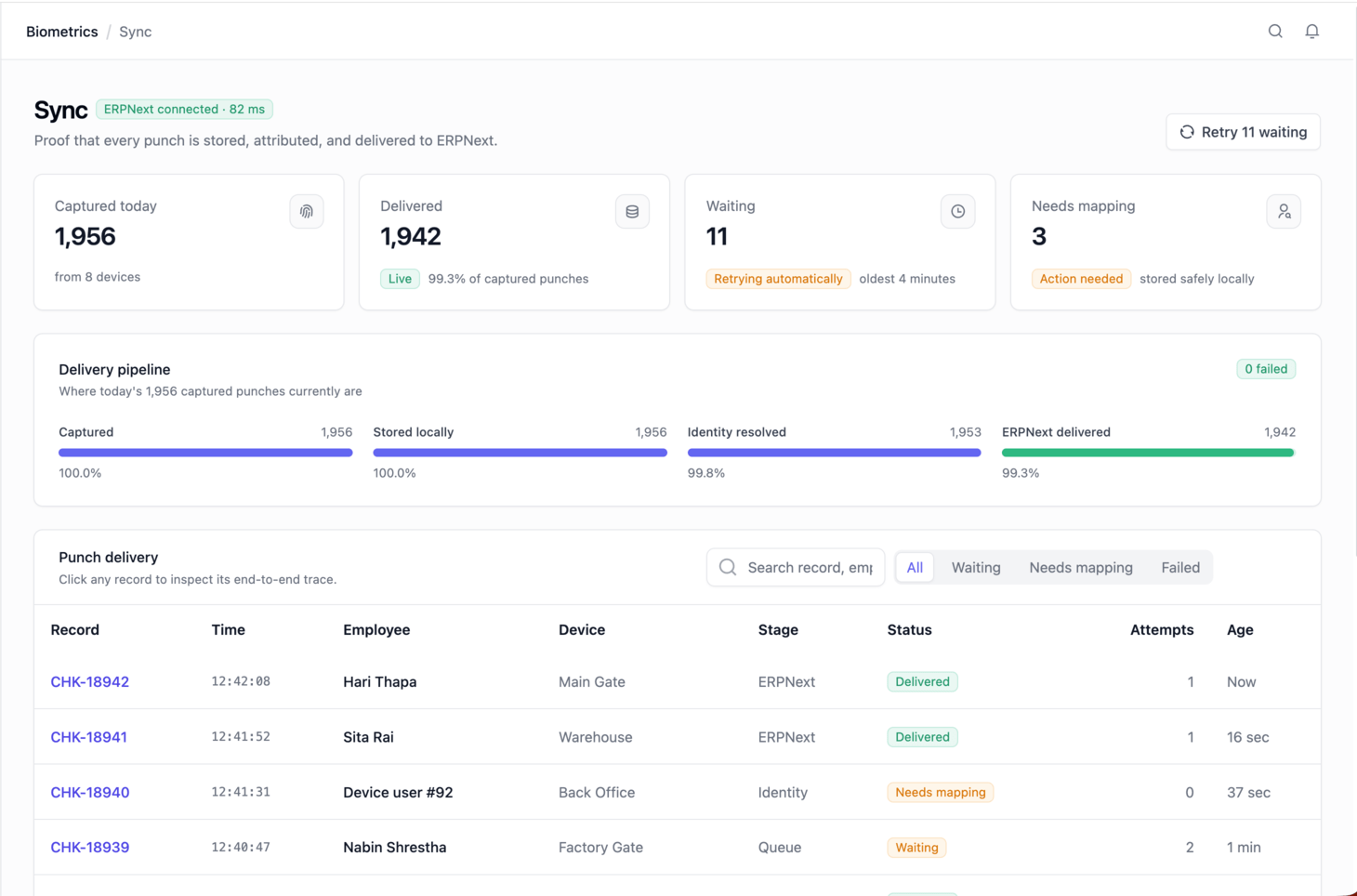
The app zkteco_checkins_sync acts as a bridge between ZKteco and ERPNext. It pulls attendance punch-in/punch-out data from the ZKteco API and automatically creates Employee Checkin records in ERPNext. Think of it as the missing link that connects your biometric hardware to your HR module.
Step-by-Step Process
Step 1 — Set up your ZKTeco device. Make sure your ZKTeco biometric device is physically set up, enrolled with employee fingerprints/face data, and connected to your local network.
Step 2 — Connect it to ZKBio Time software. Install ZKteco on your server, add your device to it, and confirm that punch transactions are appearing in the software. Note down your Server IP and Port (usually port 80) — you’ll need these later.
Step 3 — Install zkteco_checkins_sync on your Frappe/ERPNext instance
bench get-app GitHub - DeliveryDevs-ERP/Zkteco-Checkins-Sync · GitHub
bench --site your-site.com install-app zkteco_checkins_sync
bench migrate
Or install it directly via the Frappe Cloud Marketplace if you’re on Frappe Cloud.
Step 4 — Configure the app. Go to Setup → ZKTeco Checkin Sync → ZKTeco Config in ERPNext and fill in:
-
Server IP and Port of your ZKBio Time server
-
ZKTeco Time superuser username and password
-
Click “Register API Token”
-
Click “Test Connection” to verify everything is working
Step 5 — Map your employees. The app matches ZKTeco’s emp_code to ERPNext’s Employee ID field. Make sure they match exactly — including leading zeros (e.g., 001 must be 001 on both sides).
Step 6 — Enable Sync and set your frequency. Enable sync and choose how often the app should pull data — anywhere from every 10 seconds to once an hour, depending on your office size.
Once this is done, attendance data flows automatically from your ZKTeco device all the way into ERPNext Employee Checkin records.
Let’s Help Each Other
If you’re attempting this integration, do give it a try! Drop your questions or issues in the comments below — we’ve been through the process and would be happy to help you troubleshoot. The community grows stronger when we share what we learn. 
ERPNext Implementers| Frappe Partner| Satat Technologies