Hi all,
I’m building a quiz webform in LMS and need an HTML field to display questions and allow users to select answers. The HTML field from the referenced DocType seems to be missing or not appearing when I try to add it to a table.
My Doctype setup actually contain HTML field. However, when I try to link or add this HTML field to a table within the webform, it doesn’t seem to appear or be selectable.
Could someone please explain the correct way to display an HTML field (containing dynamic content like quiz questions and options) from a referenced DocType within a table on a Frappe webform? Any guidance or code examples on how to achieve this would be greatly appreciated!
Thank you!
Hi AfsalCp,
I know it’s been a minute since your question, but given I had similar challenges, I guess someone else may face the same challenges.
Disclaimers:
- I write this because I find webforms to be a very powerful feature and I don’t believe enough information on how to use it properly is currently available.
- I don’t believe myself an expert, but I hope it helps someone.
DocType
The way I went about it was:
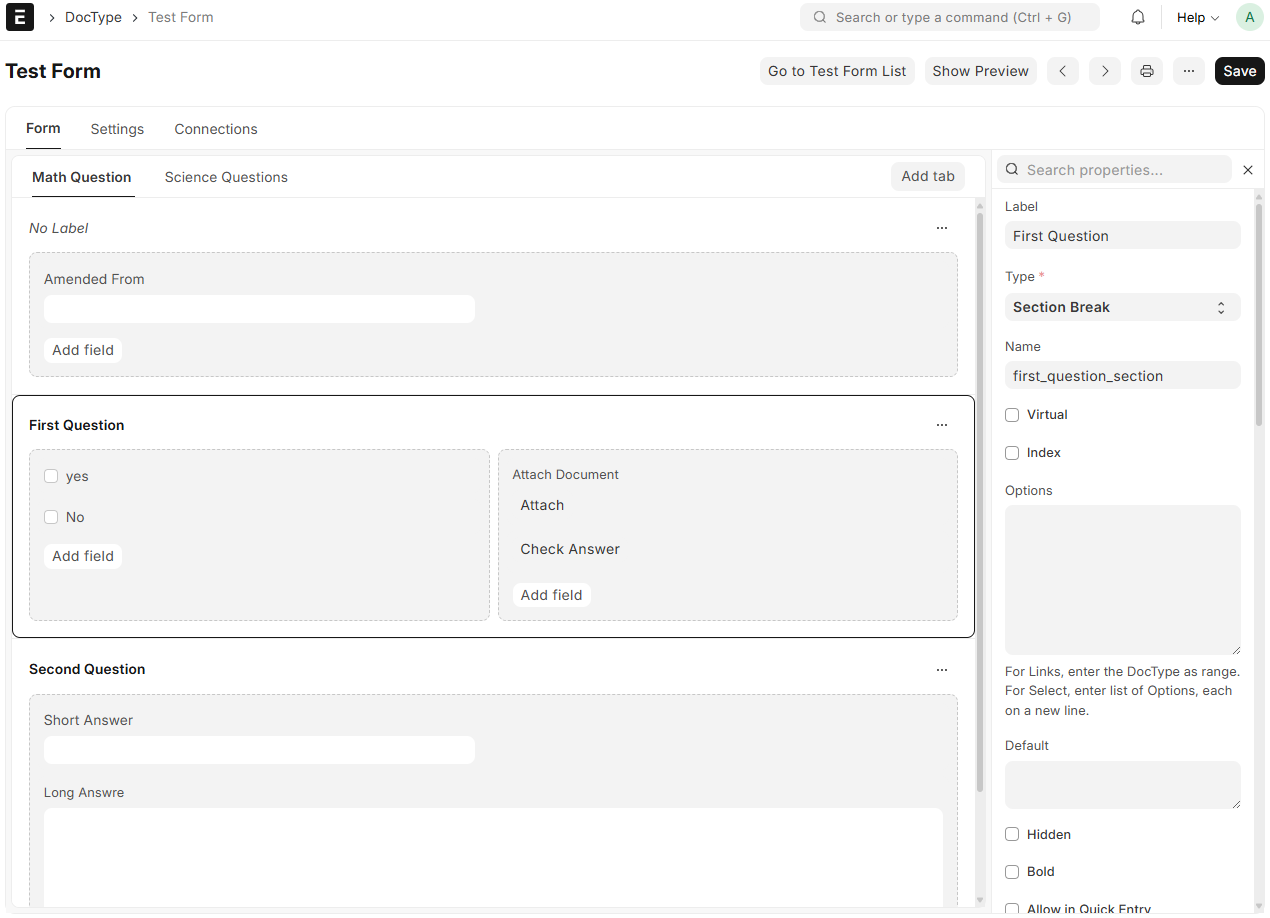
- Creating a new section for each question, and write the actual question as the section label
- Create the answers within the section, choosing the appropriate field-type (checkbox, data, text, etc.), write the answer text as the label.
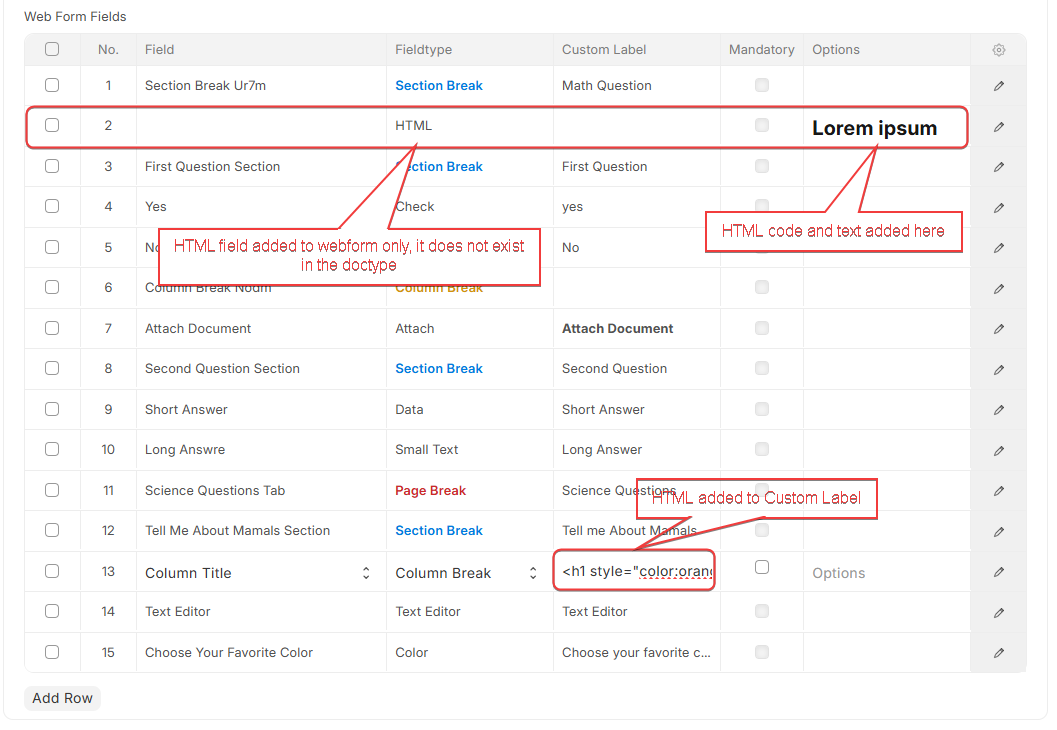
- Keep in mind that some fields such as “HTML” or buttons to not populate from the doctype to the webform. The answer I got during research is they don’t populate because they are not stored in the database. You can recreate them in the webform if you need them or simply add them for internal (desk users) use.
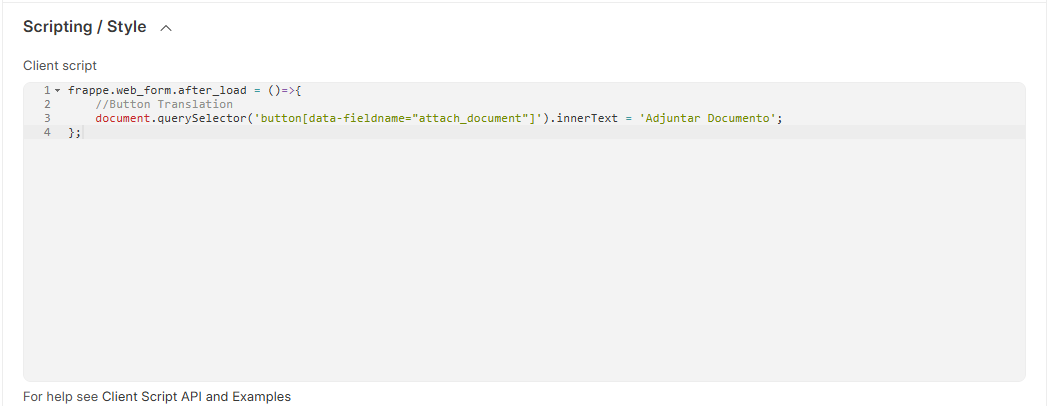
- You can also create buttons in the webform that do not appear in the doctype, you would need to write the buttons logic in the Customization → Client Script section of the webform. It seems that due to security reasons, the JS functionality here is restricted, so some behaviors (i.e. checking database info) might be difficult to implement.
- You can get very creative, i.e. adding tabs in the doctype for different sections would translate to a paginated webform
Examples of how the form(doctype) would look like below:
Webform
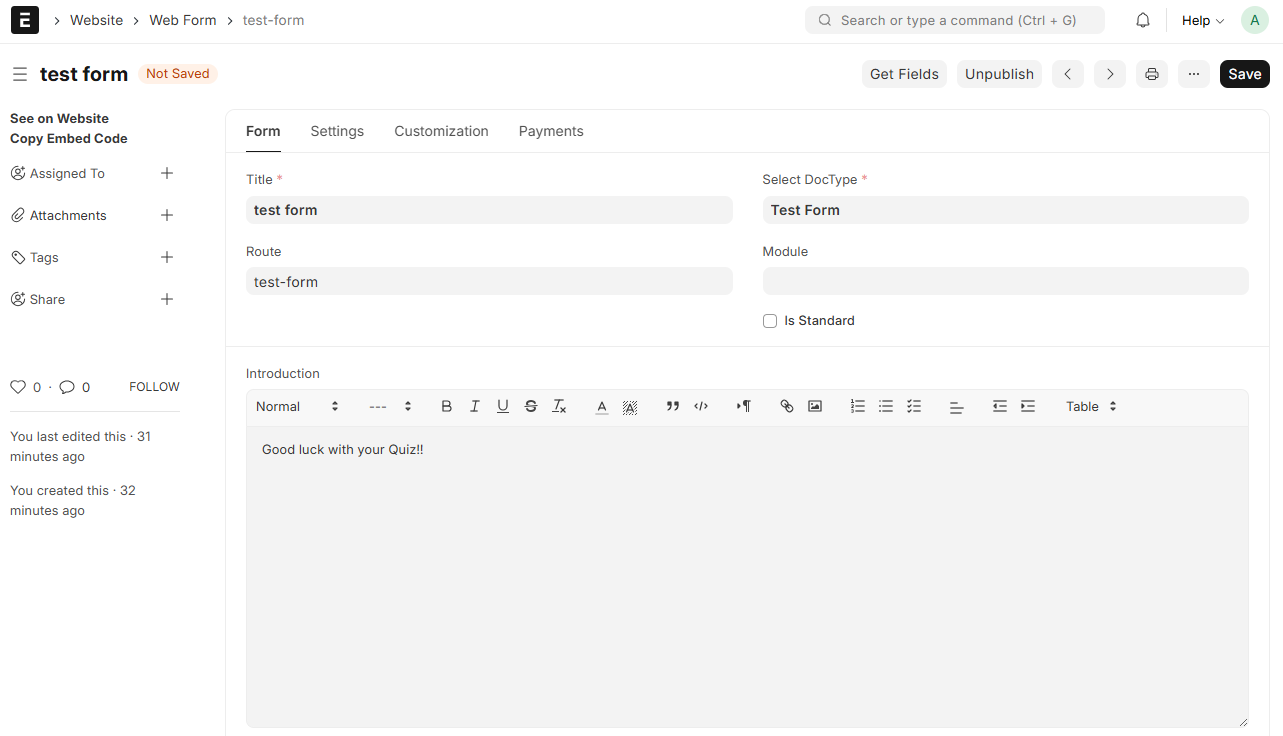
You can then create a webform and name it however you want it. You can actually create several webforms based in the same form(doctype). A use-case for doing this would be translations. In my case, I needed to present the form in English and Spanish, but I wanted all answers to pool in the same form(doctype) in the backend. All I needed to do was:
- create the first webform
- duplicated (Shift + D)
- translate the webform Custom Labels.
Once the webform is created and you import your data fields, you can add more fieldtypes, or modify the ones imported.
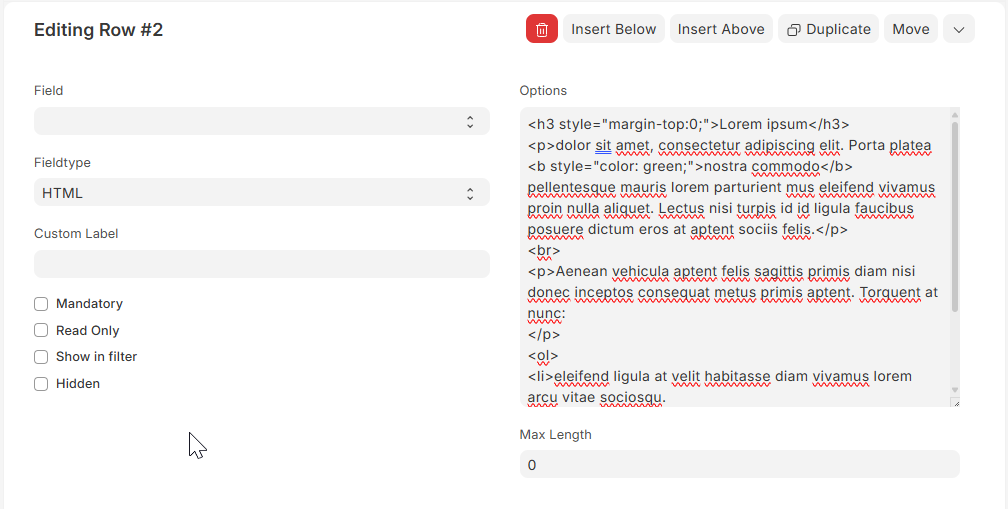
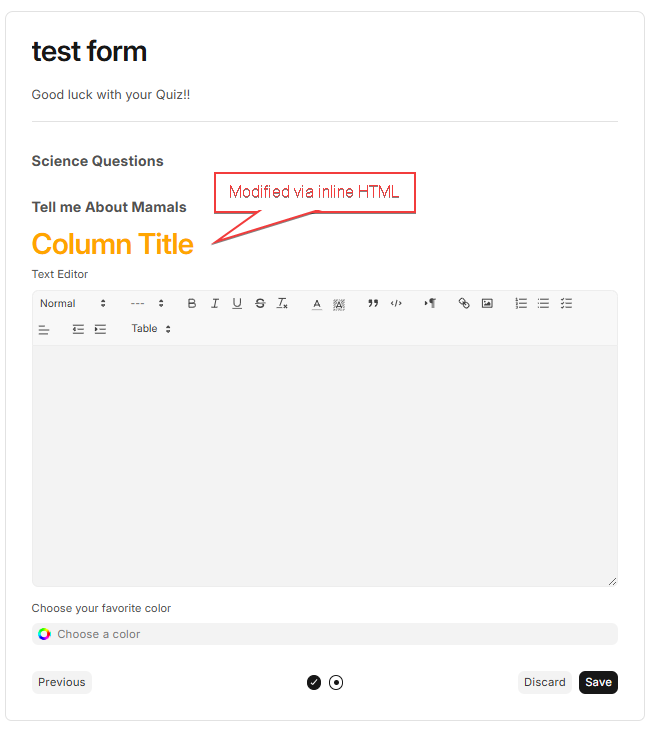
- HTML: modifications to a fieldtype can be done directly in the Cutom Label section, the only exception I found to this is if you add an HTML fieldtype, which needs to be written in the Options section
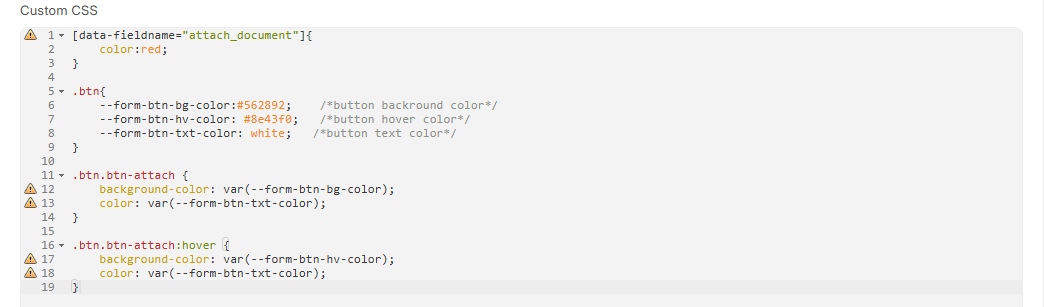
- CSS: This is usually done in Customizations → Custom CSS section, a style tag can also be added to any HTML
- JS: This is done in Customizations → Client Script section.
Webform Settings Photos:
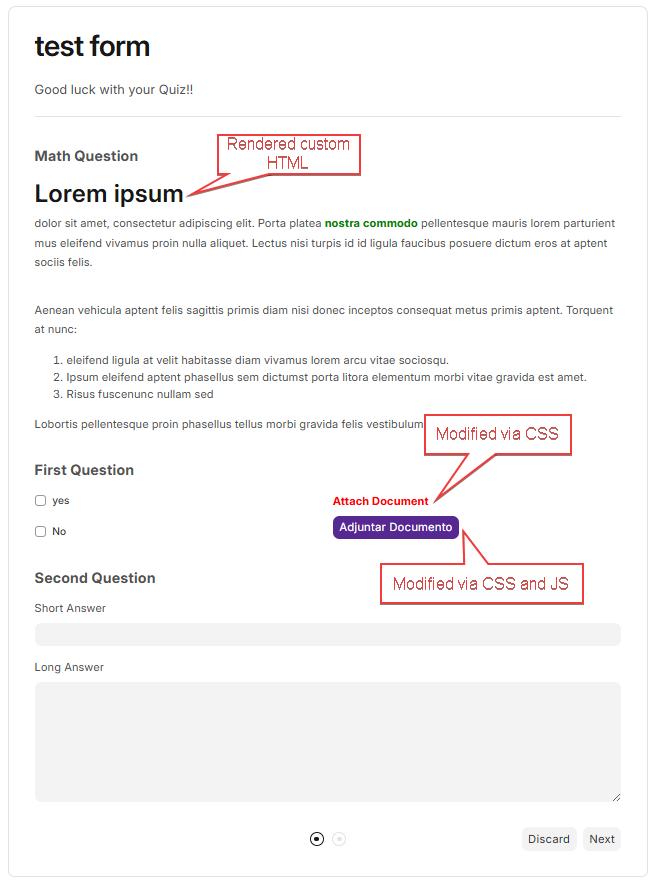
Webform Final Result:
3 Likes