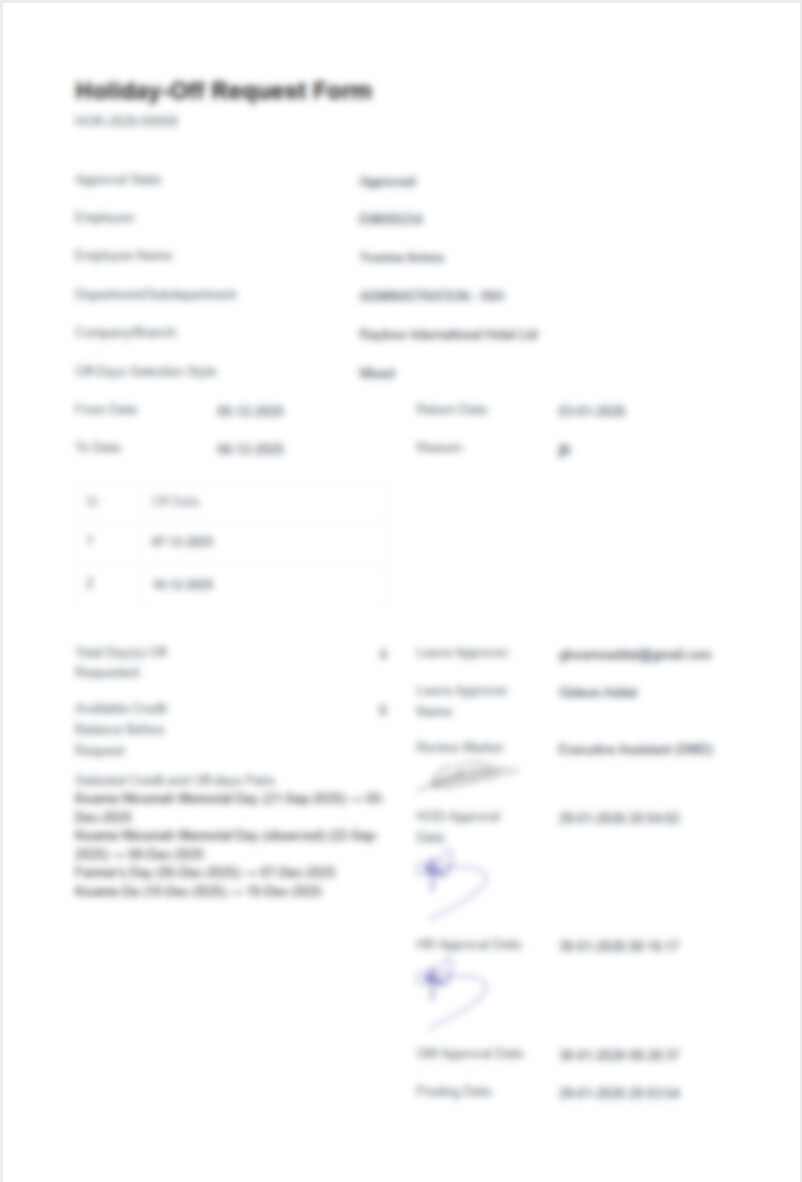
Image field essentially shows image url as configured in Attach Image field. I get to have the image showing alright but just as every field shows it label and value (side by side) in print, I can’t seem to get same going with the Image field.
For example, if the Image field is labelled “HOD’s Signature:” so in the print out I expert;
HOD’s Signature: “then the signature image shows”
However all I get is the image in the print out. No label. Kindly assist if you can. Thanks already.
Solution: How to Show Image Field Labels in Print Format
The standard Print Format macros in Frappe/ERPNext are designed to render Image and Attach Image fields by outputting only the tag, effectively bypassing the label rendering logic used for text fields.
To display the label (e.g., “Signature”, “Photo”) above the image, you must use a Custom Print Format with improved Jinja logic to explicitly render the label.
Steps to Implement:
Go to Print Format List and click New.
Select the DocType (e.g., Employee, Sales Invoice) and give it a Name.
Important: Check the box “Custom Format”.
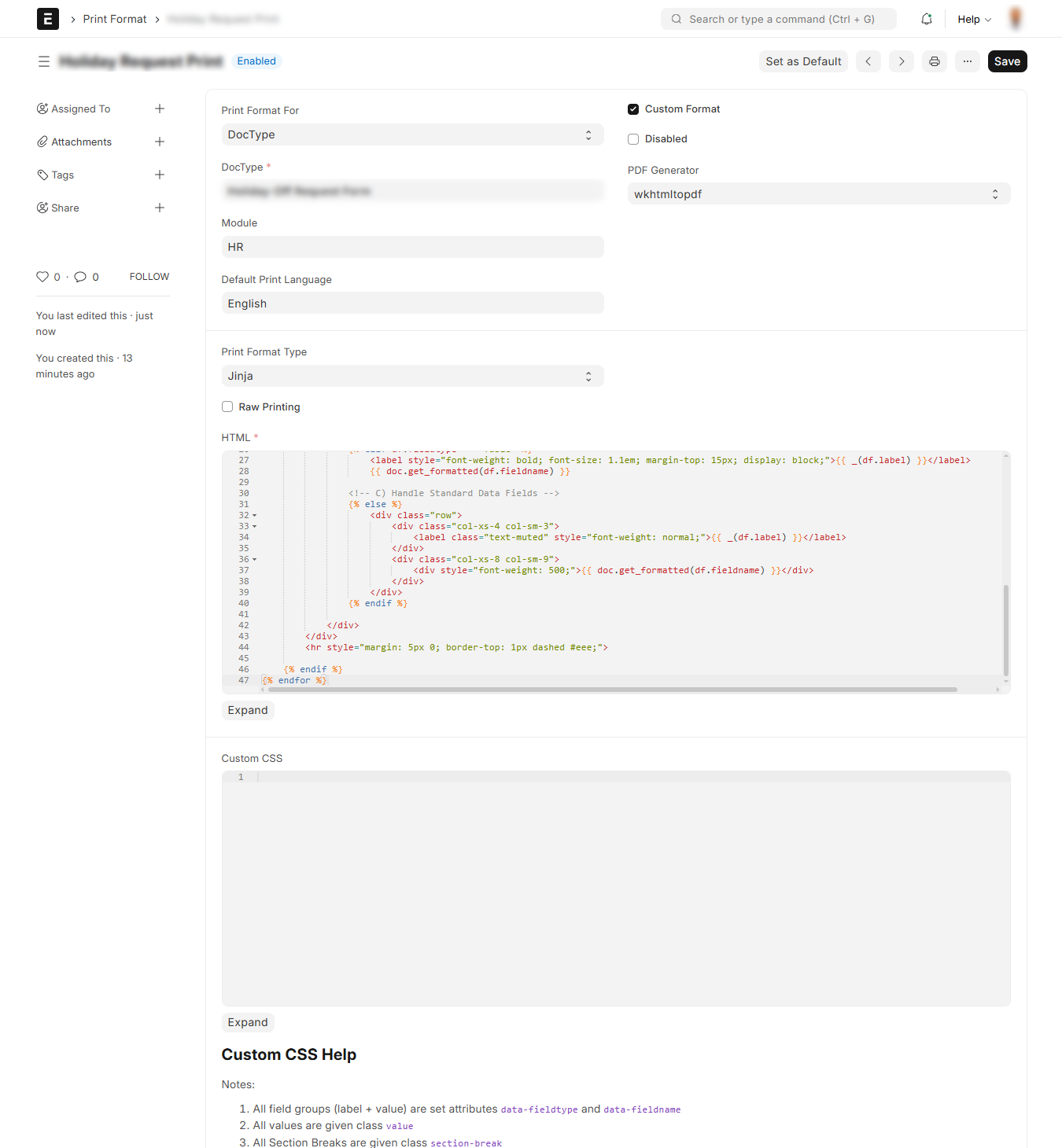
Paste the following HTML/Jinja code into the editor.
This code is dynamic: it loops through all fields, detects images, and forces the label to appear. It also handles the standard “Image” field found in DocTypes like Employee or Item to ensure it isn’t missed or duplicated.
The Code:
html
<!-- 1. Handle special/standard 'image' field (common in Employee/Item DocTypes) -->
{% if doc.image %}
    <div class="row" style="margin-bottom: 20px; page-break-inside: avoid;">
        <div class="col-xs-12">
            <label style="font-weight: bold; font-size: 1.2em; display: block;">{{ _("Image") }}</label>
            <img src="{{ doc.image }}" class="img-responsive" style="max-width: 250px; margin-top: 5px; border: 1px solid #ccc; padding: 5px;">
        </div>
    </div>
    <hr>
{% endif %}
<!-- 2. Loop through all other fields -->
{% for df in doc.meta.fields %}

    <!-- Filter: Ensure field has value, is not hidden, and is not the main 'image' field handled above -->
    {% if df.fieldname != 'image' and doc.get(df.fieldname) and not df.hidden and not df.print_hide %}

        <div class="row" style="margin-bottom: 10px; page-break-inside: avoid;">
            <div class="col-xs-12">

                <!-- A) Custom Logic for Image Fields: Render LABEL + IMAGE -->
                {% if df.fieldtype in ["Image", "Attach Image"] %}
                    <label style="font-weight: bold; display: block; margin-bottom: 5px;">{{ _(df.label) }}</label>
                    <img src="{{ doc.get(df.fieldname) }}" class="img-responsive" style="max-width: 300px;">

                <!-- B) Handle Child Tables -->
                {% elif df.fieldtype == "Table" %}
                    <label style="font-weight: bold; font-size: 1.1em; margin-top: 15px; display: block;">{{ _(df.label) }}</label>
                    {{ doc.get_formatted(df.fieldname) }}

                <!-- C) Handle Standard Data Fields -->
                {% else %}
                    <div class="row">
                        <div class="col-xs-4 col-sm-3">
                            <label class="text-muted" style="font-weight: normal;">{{ _(df.label) }}</label>
                        </div>
                        <div class="col-xs-8 col-sm-9">
                            <div style="font-weight: 500;">{{ doc.get_formatted(df.fieldname) }}</div>
                        </div>
                    </div>
                {% endif %}

            </div>
        </div>
        <hr style="margin: 5px 0; border-top: 1px dashed #eee;">

    {% endif %}
{% endfor %}
Could you please explain the idea more clearly?
What was the exact problem you faced that led you to this solution?
Also, please make the images as clear as possible in the print output,
and hide only non-essential details while keeping all important information visible.
The challenge am having with the default print format is as as follows;
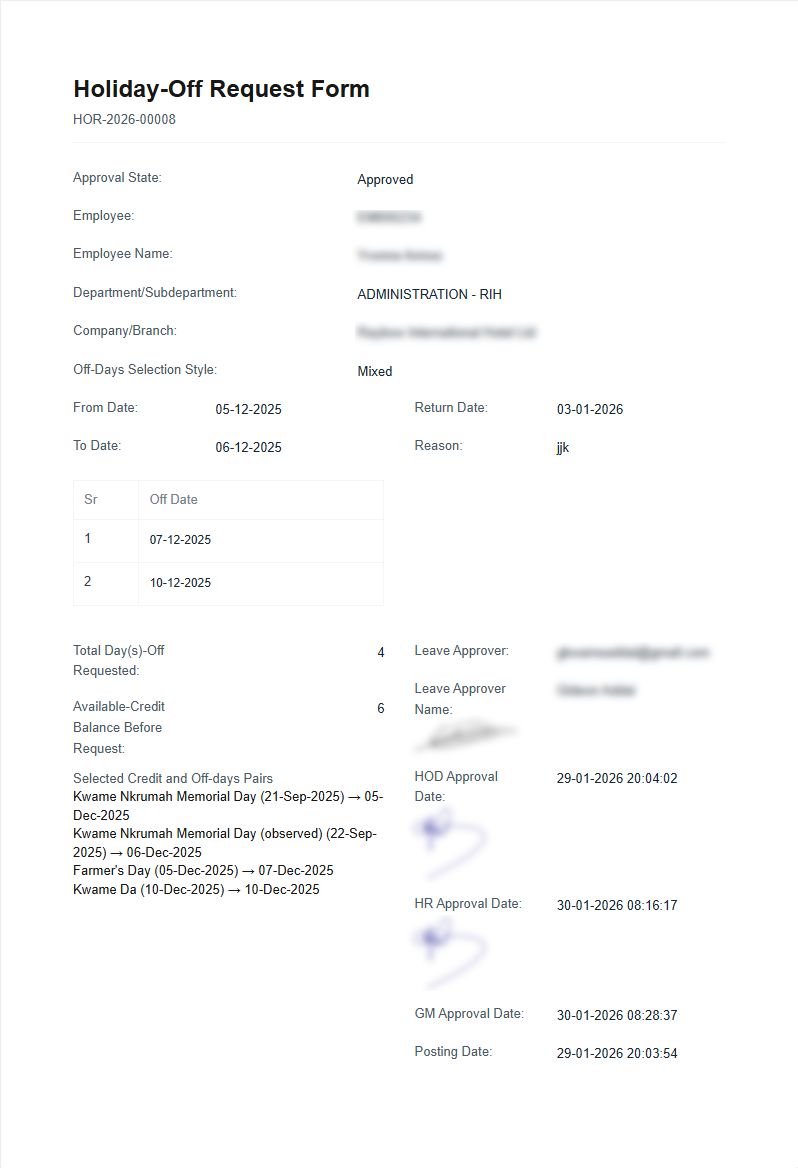
The shown signatures are all fetched from fields of type Image Attach. However, just as all approval dates have Labels and accompanying values side-by-side, (eg. HOD Approval Date: 29-01-2026 20:04:02). I had hope the shown signature field (which has label HOD Signature) will show it label on the left and then the image displaying on the right. Howeve it doesn’t do that. It only shows the image and it doesn’t even align it to the right, but to the left.
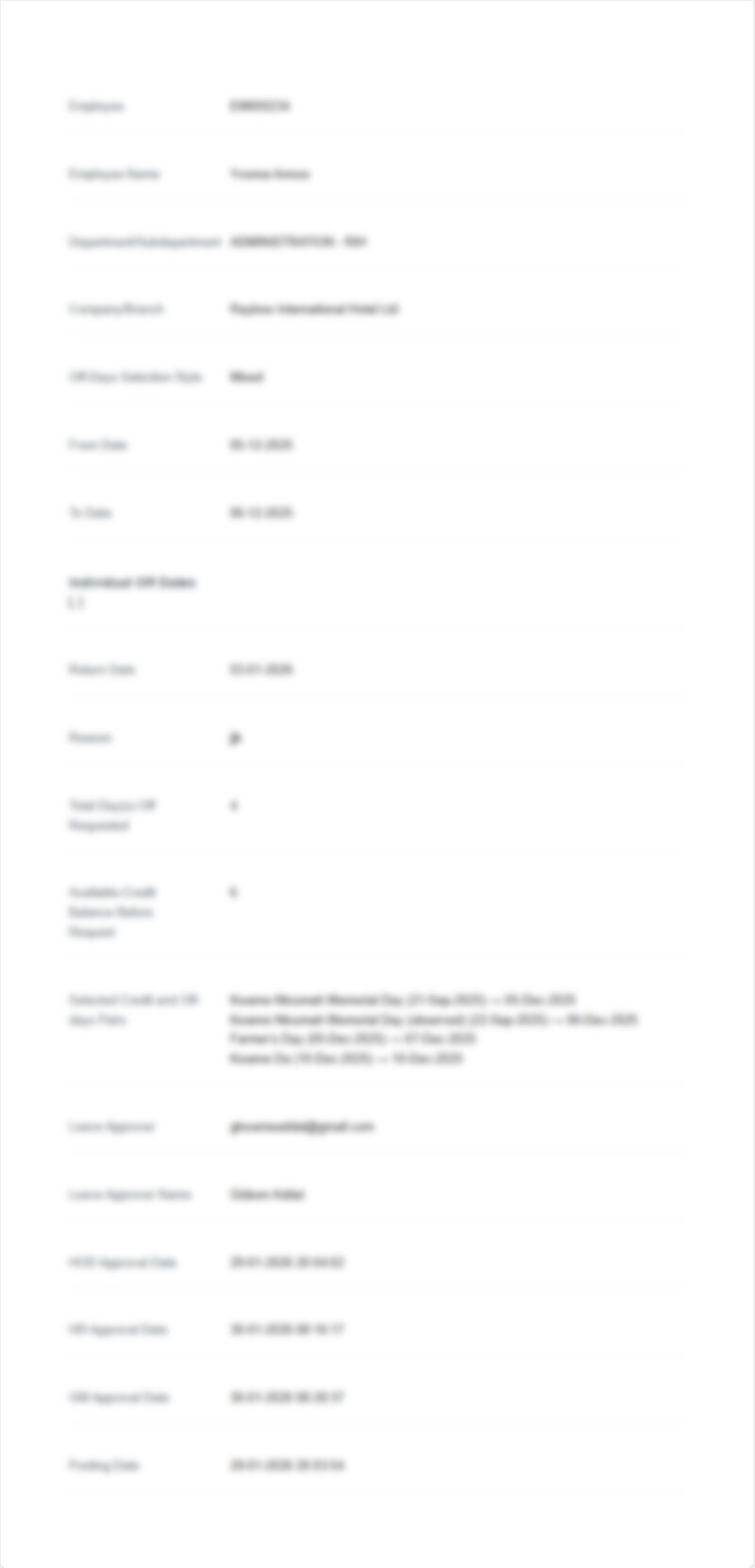
I attempted your solution as you described and the result I had is what shows in the attached (last image).