Deep Dive into bench start and Process Management in Frappe
Credit goes to Mr. Hussain (@buildwithhussain) for the original explanation.
This post is based entirely on his insightful video:
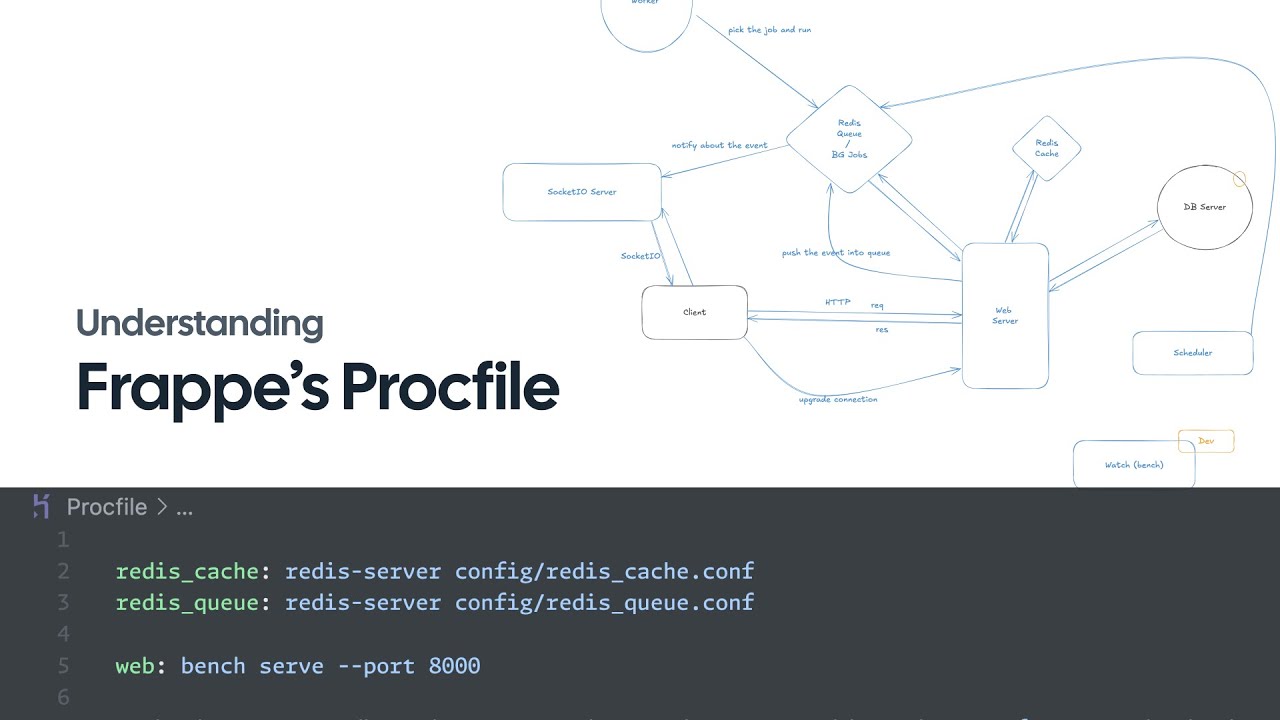
I’ve simply restructured his valuable content into Markdown for easier reading and sharing.
Overview
When you run bench start in a Frappe environment, you’re initiating a complex orchestration of multiple services that work together to power the Frappe/ERPNext system. This command uses Honcho (a Python process manager) to read a Procfile and start all the necessary processes simultaneously.
What You Get: Instead of manually opening multiple terminal windows and running each service separately, bench start launches everything in one coordinated environment with unified logging and process management.
Process Management Architecture
What is Honcho?
Honcho is a Python-based process manager inspired by Foreman (popular on Heroku). It’s a lightweight tool that:
- Reads process definitions from a
Procfile - Manages multiple processes simultaneously
- Provides unified logging with process identification
- Handles process lifecycle (start, stop, restart)
- Shows all logs in one terminal with color-coded prefixes
Key Benefits of Using Honcho in bench start
When you run bench start, Honcho provides several advantages that make development easier and more efficient:
1. Centralized Management
- You don’t need to open multiple terminal windows to run Redis, web server, workers, and socketio.
- A single command (
bench start) launches everything together. - Makes it easier to manage the entire stack from one place.
2. Unified Logging
- Logs from all processes (web, Redis, workers, socketio) appear in one terminal window.
- Each log line is prefixed by the process name (e.g.,
[web],[redis_cache],[worker]). - This makes debugging faster since you see the whole system’s activity in real time.
3. Process Coordination
- Honcho ensures services start in the right order.
- Example: Redis starts before workers (since workers depend on Redis).
- If you stop
bench start, all processes shut down gracefully together. - Prevents “orphan processes” (e.g., a worker still running after web server stopped).
4. Development Friendly
- Designed for local development, not production.
- Auto-reloads code changes (via
watch) without restarting manually. - Easy to experiment: stop/start the full environment with a single command.
- Saves time and improves productivity when working on Frappe apps.
How Frappe Uses Honcho
When you run bench start, Frappe Bench relies on Honcho to start and manage all the essential processes that power your development environment.
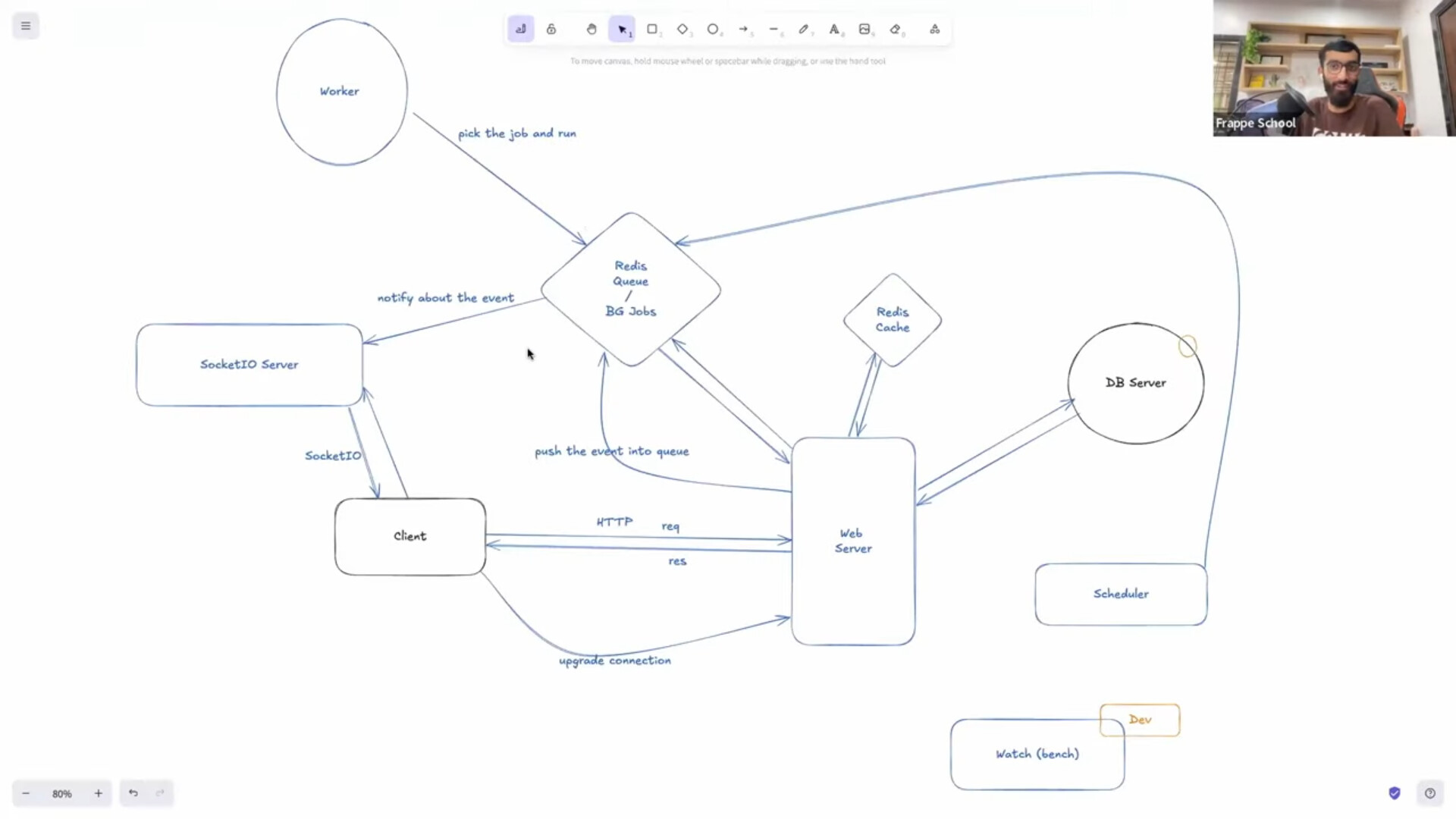
Honcho reads the Procfile and launches the following services in parallel:
-
Web Server (HTTP/WSGI)
- Serves the Frappe application.
- In development: uses Werkzeug’s lightweight server.
- In production: replaced by Gunicorn.
-
Redis Instances
- Cache: Stores sessions, page cache, and temporary data.
- Queue: Handles background jobs and task communication.
-
Background Workers
- Process jobs from Redis queues (
default,long,short,email). - Run tasks outside the web request cycle (emails, reports, etc.).
- Process jobs from Redis queues (
-
Task Scheduler
- Runs scheduled jobs (cron-like tasks).
- Handles automated backups, reminders, daily jobs, etc.
-
Real-time Communication (SocketIO)
- Provides WebSocket-based live updates.
- Used for notifications, chats, progress indicators, etc.
-
File Watcher (Development Only)
- Monitors code and asset changes.
- Automatically reloads server or rebuilds assets.
- Improves developer productivity.
In short
- Honcho = a process manager for Python projects.
- Bench start uses Honcho to start and supervise all services (web, workers, socketio, scheduler, etc.) needed for a Frappe/ERPNext site.
- Instead of you having to open multiple terminal windows and run each command manually, Honcho starts them all together and shows their logs in one place.
- Without Honcho, you’d have to start each one manually in different terminals.
- Honcho is the “orchestrator” that starts, stops, and supervises all the moving parts of a Frappe development environment.
Honcho +
Procfile= one command, one log stream, coordinated processes, and a smoother developer experience.
Detailed Process Breakdown
1. Redis Services
Redis Cache (redis_cache)
redis_cache: redis-server config/redis_cache.conf
- Purpose: Session storage, page caching, API response caching
- Port: 13000 (configurable)
- Configuration:
config/redis_cache.conf
What It Stores:
- User sessions and authentication data
- Page render cache
- API response cache
- Temporary data storage
- Rate limiting counters
Redis Queue (redis_queue)
redis_queue: redis-server config/redis_queue.conf
- Purpose: Background job queues, task scheduling, inter-process communication
- Port: 11000 (configurable)
- Configuration:
config/redis_queue.conf
What Redis Queue (redis_queue) Manages:
- Background Job Queues
Stores and organizes tasks like sending emails, generating reports, and data imports. - Task Scheduling Data
Keeps track of scheduled jobs (e.g., daily backups, reminders, recurring tasks). - Inter-Process Communication
Enables communication between different parts of the system (web server, workers, scheduler). - Job Status Tracking
Maintains job states: queued, in-progress, failed, or completed. - Worker Coordination
Ensures multiple workers can process jobs efficiently without conflicts.
2. Web Server
What is a WSGI App?
A WSGI app is any Python application that follows the WSGI protocol.
WSGI (Web Server Gateway Interface) is simply a standard/unified protocol that defines how Python web apps interact with web servers.
Examples of WSGI Apps
- Django
- Flask
- Frappe
Any Python app is considered as a WSGI app when it follows the WSGI specification — meaning it exposes a special callable object (usually called application) that the web server can invoke.
WSGI Servers and Tools
- Gunicorn → The most popular Python WSGI server, widely used in production.
- Werkzeug → A Python utility library that simplifies building and running WSGI applications.
How Frappe Uses WSGI
- Frappe runs on Gunicorn as the WSGI server in production.
- Internally, it also uses Werkzeug to simplify handling the WSGI app during development.
WSGI is the “bridge” between Python apps and web servers, and Frappe leverages Gunicorn + Werkzeug to implement it.
You can see the web server process defined in the Procfile:
web: bench serve --port 8000
- Implementation: Uses Werkzeug’s built-in development server
- Port: 8000 (configurable)
- Features: Auto-reload, debugging, single-threaded
- Auto-reload → Automatically restarts the server when you change Python files (great for development).
- Debugging → Provides detailed error pages and a debugger for troubleshooting.
- Single-threaded → Handles one request at a time (simple but not suitable for production).
Technical Details:
# From frappe/app.py
from werkzeug.serving import run_simple

def serve(port=8000, profile=False, no_reload=False, no_threading=False, site=None, sites_path=".", proxy=False):
    # ... configuration ...
    run_simple(
        "0.0.0.0",
        int(port),
        application,  # WSGI application
        use_reloader=True,  # Auto-reload on file changes
        use_debugger=True,  # Interactive debugger
        threaded=False,     # Single-threaded for development
    )
Production Server
- Implementation: Gunicorn with multiple worker processes
- Configuration: Set in
common_site_config.json
{
  "gunicorn_workers": 17,
  "webserver_port": 8000
}
Why Gunicorn for Production?
- Multi-process: Handles multiple concurrent requests
- Performance: Optimized for production workloads
- Reliability: Process isolation and automatic restart
- Scalability: Easy to scale horizontally
How to Enable Gunicorn for Frappe/ERPNext
By default, bench start runs the Werkzeug development server (single-threaded, with debugging).
For production, you should use Gunicorn, a powerful WSGI server that can handle many concurrent requests.
1. Check Gunicorn Installation
When you set up a Frappe/ERPNext environment, Gunicorn is usually installed automatically.
To verify:
bench pip show gunicorn
2. Configure Gunicorn Workers
Open your site’s common_site_config.json (in sites/ directory):
{
  "gunicorn_workers": 4,
  "webserver_port": 8000
}
- gunicorn_workers → Number of worker processes (recommend 2 x CPU cores + 1).
- webserver_port → Port Gunicorn will serve on (default: 8000).
3. Use Bench Setup for Production
Instead of running manually, let Bench configure Gunicorn + Supervisor:
bench setup production frappe
This will:
- Configure Gunicorn as the webserver
- Set up Supervisor (process manager) to auto-start Gunicorn, workers, and schedulers
- Configure Nginx as a reverse proxy (optional)
3. Real-Time Communication (SocketIO)
socketio: /home/ameer/.nvm/versions/node/v18.20.6/bin/node apps/frappe/socketio.js
Unlike the web server (which uses HTTP and works on a request → response cycle),
SocketIO enables real-time communication between the server and the client.
Web Server vs SocketIO
- Web Server (HTTP) → The client sends a request → server responds → connection ends.
- SocketIO (WebSocket protocol) → The client and server keep a persistent connection, allowing the server to push updates instantly without waiting for a client request.
How SocketIO Works in Frappe
- Client Opt-In → The browser asks for a real-time connection.
- Protocol Upgrade → The web server upgrades the connection from HTTP → SocketIO.
- (Python web server itself cannot handle this directly).
- Node.js Process → A separate Node.js service (
apps/frappe/socketio.js) runs as the SocketIO server. - Redis as a Bridge:
- The Python web server publishes events to Redis Queue.
- The SocketIO server subscribes to Redis and listens for new events.
- When an event is received, the SocketIO server emits it directly to the client in real time.
Architecture:
Client ←→ SocketIO Server ←→ Redis Queue ←→ Web Server
4. File Watcher (Development Only)
watch: bench watch
The watch process is a development tool in Frappe that automatically detects code changes and reloads the server.
It saves developers from restarting the server manually every time they modify Python, JS, CSS, or configuration files.
- Purpose: Automatic server reload on code changes
- Port: 6787 (configurable)
- Production: Disabled automatically
How It Works
- Monitors source files (Python, JS/Vue, CSS/SCSS, configs).
- On any change, it rebuilds assets or reloads the server automatically.
- Provides instant feedback during development.
What It Monitors:
- Python file changes
- JavaScript/Vue file changes
- CSS/SCSS file changes
- Configuration file changes
Benefits:
- No manual restarts during development.
- Instant feedback loop → edit code → see results instantly.
- Makes the developer workflow smoother and more efficient.
When to Use It
- Enabled in Development → Boosts productivity and speeds up the dev cycle.
- Disabled in Production → For stability and performance.
- In production, after pulling updates from GitHub, you must manually restart your processes to apply changes.
5. Task Scheduler
schedule: bench schedule
- Purpose: The Scheduler process is responsible for handling cron jobs and scheduled tasks in Frappe.
- Implementation: Python-based scheduler with Redis backend
What It Handles:
- Cron Jobs: Time-based task execution
- Recurring Tasks: Daily, weekly, monthly operations
- Background Jobs: Long-running processes
- System Maintenance: Cleanup, backups, reports
How It Works
- It continuously checks: “Is it time to run this task?”
- When the scheduled time comes, the Scheduler puts the job into the Redis Queue.
- From there, the Worker process actually executes the job.
Important Note
- The Web server does not run background jobs.
- Workers are the ones that pick up jobs from Redis and execute them.
- The Scheduler’s only role is to enqueue jobs at the right time.
6. Background Workers
worker: bench worker 1>> logs/worker.log 2>> logs/error.log
- Purpose: Processes background jobs from Redis queues
- The Worker process is responsible for executing background jobs that are stored in the Redis Queue.
- Implementation: RQ (Redis Queue) worker system
Worker Capabilities:
-
Multiple Queues
Workers can listen to different queues depending on the type of job:default→ regular jobslong→ heavy/long-running jobs (e.g., large reports)short→ quick, lightweight jobsemail→ email sending tasks
-
Auto-scaling
You can start multiple Worker processes in parallel to handle higher loads.
For example:worker: bench worker --queue default worker-long: bench worker --queue long worker-email: bench worker --queue email -
Error Handling: Failed jobs don’t just vanish. Workers can automatically retry them or move them to a “failed jobs” list for inspection.
-
Monitoring: Workers track the status and progress of jobs, making it possible to debug issues, measure performance, and retry failures.
How It Works
- The Scheduler enqueues jobs into Redis at the right time.
- The Worker continuously listens to Redis for new jobs.
- When a job appears, the Worker picks it up and executes it.
Worker Types:
# Single worker
worker: bench worker

# Multiple workers
worker: bench worker
worker-2: bench worker
worker-3: bench worker

# Specialized workers
email-worker: bench worker --queue email
long-worker: bench worker --queue long
Where is the Database Process?
You might notice that there is no database process in the Procfile.
That’s because Bench does not start the database — the database server (MariaDB/MySQL) is a separate service, managed outside of Bench.
How It Works
- When you create a new site with Bench, it asks for your database credentials.
- Using those credentials, Bench creates a new database dedicated to that site.
- Each site in Frappe/ERPNext gets its own database.
In Short
- The database server (MariaDB/MySQL) runs as its own independent service.
- Bench only connects to it; it doesn’t manage or start it.
- Each site = one database (clean separation of data per site).