ERPNext v16 – Local Docker Setup for Development
Note
-
Use Git Bash on Windows (do not use CMD or PowerShell)
-
This setup is for development only, not for production
Prerequisites
-
Docker (latest version)
-
OS: Any
-
RAM: Minimum 8 GB
-
Python:
>=3.14 and <3.15 -
Node.js:
24
Step 1: Clone Frappe Docker Repository
Clone the repository:
git clone https://github.com/frappe/frappe_docker
Rename the folder to avoid conflict with other versions:
mv frappe_docker frappe_docker_v16_demo
Go into the directory:
cd frappe_docker_v16_demo
Step 2: Setup Devcontainer and VS Code Config
Copy devcontainer example:
cp -R devcontainer-example .devcontainer
Copy VS Code config for debugging:
cp -R development/vscode-example development/.vscode
Open the project in VS Code:
code .
Step 3: VS Code Extension (Optional)
You can ignore this step if VS Code auto-prompts.
Install Dev Containers extension:
code --install-extension ms-vscode-remote.remote-containers
Ensure you are using Git Bash on Windows.
Step 4: Open Project in Dev Container
From VS Code Command Palette (Ctrl + Shift + P):
Dev Containers: Reopen in Container
Step 5: Install and Use Node.js 24
Install Node 24:
nvm install 24
nvm use 24
Verify Node version:
node -v
Step 6: Install Python 3.14 (Stable)
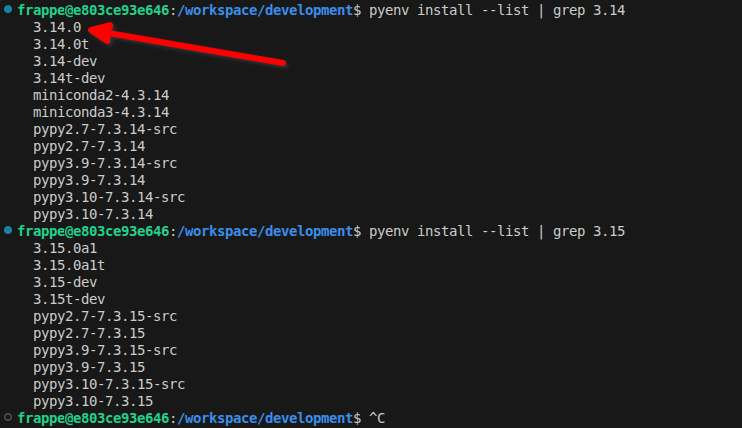
List available Python versions:
pyenv install --list | grep 3.14
Install stable version (example: 3.14.0):

pyenv uninstall 3.14.0
pyenv install 3.14.0
pyenv global 3.14.0
Step 7: Fix Yarn (Required)
Enable corepack:
corepack enable
Install required Yarn version:
corepack prepare yarn@1.22.22 --activate
Verify Yarn:
which yarn
yarn -v
Step 8: Initialize Bench (Frappe v16)
Run bench init:
PYENV_VERSION=3.14.0 bench init --skip-redis-config-generation --frappe-branch version-16 frappe-bench
Go into bench directory:
cd frappe-bench
Step 9: Configure Docker Hosts
Run inside the container:
bench set-config -g db_host mariadb
bench set-config -g redis_cache redis://redis-cache:6379
bench set-config -g redis_queue redis://redis-queue:6379
bench set-config -g redis_socketio redis://redis-queue:6379
Step 10: Create a New Site
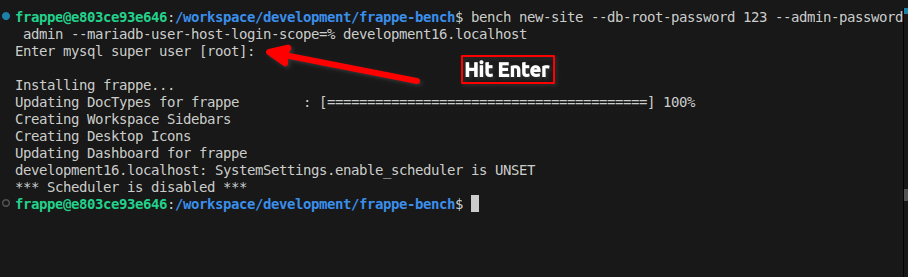
Create site:
bench new-site --db-root-password 123 --admin-password admin --mariadb-user-host-login-scope=% development16.localhost
Step 11: Enable Developer Mode
Enable developer mode:
bench --site development16.localhost set-config developer_mode 1
bench --site development16.localhost clear-cache
Step 12: Install Apps
ERPNext
bench get-app --branch version-16 --resolve-deps erpnext
bench --site development16.localhost install-app erpnext
HRMS
bench get-app --branch version-16 hrms
bench --site development16.localhost install-app hrms
India Compliance (for India only)
bench get-app --branch version-16 https://github.com/resilient-tech/india-compliance.git
bench --site development16.localhost install-app india_compliance
Email Delivery Service
bench get-app --branch main https://github.com/frappe/email_delivery_service.git
bench --site development16.localhost install-app email_delivery_service
Step 13: Migrate and Build
Select site:
bench use development16.localhost
Run migrate:
bench migrate
Run build:
bench build
Step 14: Start Bench
Start development server:
bench start
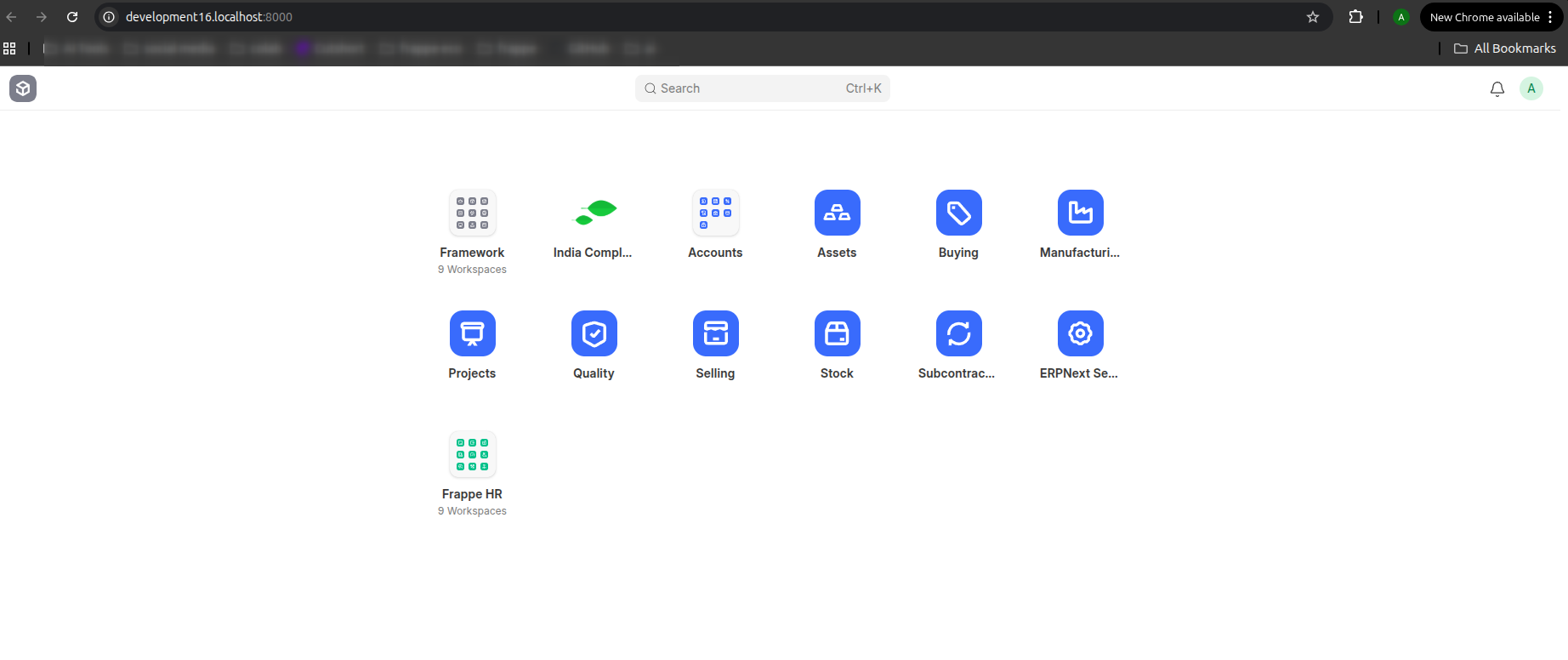
Final Note
You are now running ERPNext v16 successfully 
For custom development, reply in this forum thread or message me.
Happy Coding!


